
Azure HPC Recipe Document for Altair EDEM
1 Introduction
This document briefly explains the steps to install and run Altair EDEM application on a Virtual Machine deployed in Azure Cloud Platform and presents the performance results.
This recipe document covers the following topics: -
- Deploy & connect a required virtual machine on Azure platform.
- Install required NVIDIA drivers in virtual machine.
- Install Application on virtual machine.
- Install license manager for current application
- Performance results of current application on azure virtual machine
- Azure Cost
- Summary
2 Deploying Virtual Machine on Azure Cloud Platform
2.1 Azure Cloud Architecture for Application
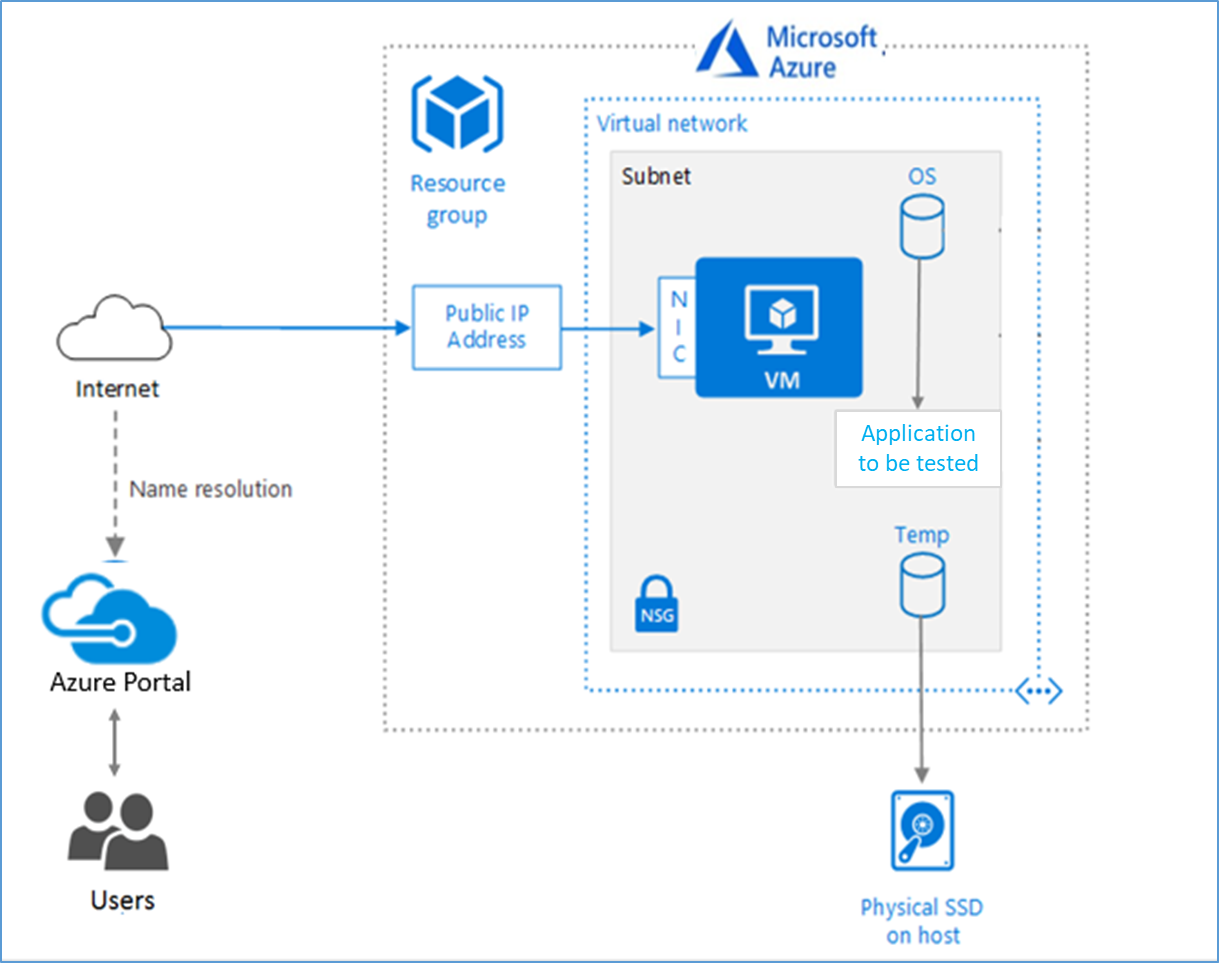
The below Architecture explains the virtual machine running on an Azure Platform
2.2 Azure Virtual Machine (VM)
A VM is a virtualized instance of a computer that can perform almost all the same functions as a computer, including running applications and operating systems.
An Azure VM gives the flexibility of virtualization without having to buy and maintain the physical hardware that runs it. However, the user still needs to maintain the VM by performing tasks, such as configuring, patching, and installing the software that runs on it.
Things to be considered before deploying a VM,
- The names of the application resources
- The location where the resources are stored
- The size of the VM
- The operating system that the VM runs
- The configuration of the VM
- The related resources that the VM needs
There are different sizes and options available for the Azure virtual machines and user can use to run apps and workloads. Depending on the workload user must choose the appropriate VM size. For complete list check this https://docs.microsoft.com/en-us/azure/virtual-machines/sizes/.
To test the performance of Altair EDEM on Azure Platform, ND A100 v4 and Ncv3-series virtual machines are deployed.
|
VM Name |
vCPU |
Memory (GiB) |
Temp storage SSD (GiB) |
GPU |
GPU Memory (GiB) |
Max Data Disk |
|
Standard_ND96asr_v4 |
96 |
900 |
6000 |
8 A100 |
40 |
32 |
|
Standard_NC6s_v3 |
6 |
112 |
736 |
1 V100 |
16 |
12 |
The current virtual machine is a new flagship addition to the Azure GPU family. (Standard_ND96asr_v4 Virtual Machine). This VMs is powered by NVIDIA Ampere A100 Tensor Core GPUs and 96 physical 2nd-generation AMD Epyc™ CPU cores (2.44GHz). The “ND96asr_v4” VM has 8 GPUs with 40 GB of memory each and supported by 96 AMD processor cores with a total memory of 900GB. Each GPU features NVLINK 3.0 connectivity for communication within the VM.
Standard NC6s_v3: This VM belongs to Ncv3-series and VMs are powered by NVIDIA Tesla V100 GPU. This GPU can provide 1.5x the computational performance of the NCv2-series.
2.3 Create a Virtual Machine on Azure Platform
Sign in to Azure
Sign into the Azure portal by using https://portal.azure.com/
Free Trial subscriptions aren't eligible for limit or quota increases.
After the successful sign in or sign up, one has to upgrade the Azure subscription to Pay-As-You-Go to deploy a Virtual machine. For deployment, the user must have regional vCPU quota which can be obtained by raising a request.
The step-by-step procedure to increase the vCPU quota is given below,
https://docs.microsoft.com/en-us/azure/azure-portal/supportability/per-vm-quota-requests
The step by step procedure to deploy Virtual machine is given below,
- Type virtual machines in the marketplace search.
- Under Services, select Virtual machines.
- In the Virtual machines page, select Create Then Virtual machine.
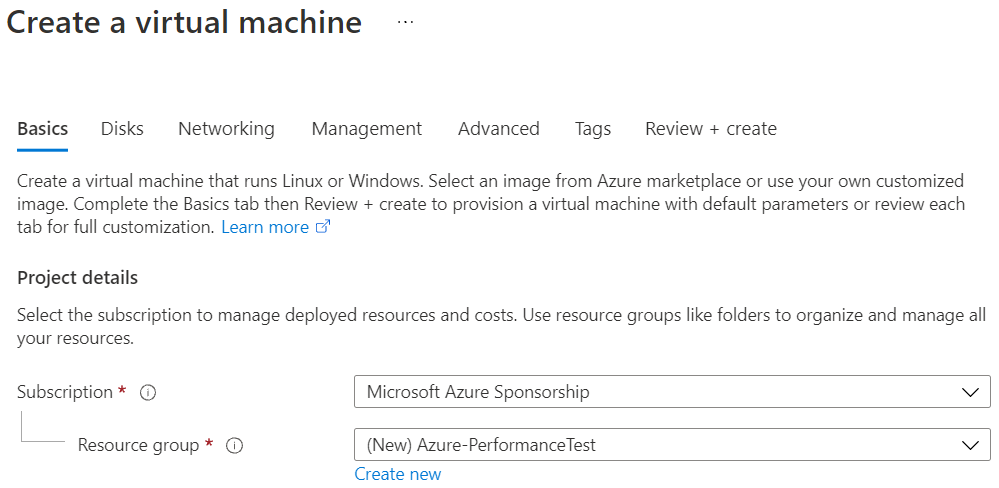
- In the Basics tab, under Project details, make sure the correct subscription is selected and then choose to Create new resource group. Type Azure-PerformanceTest(user choice) for the name.
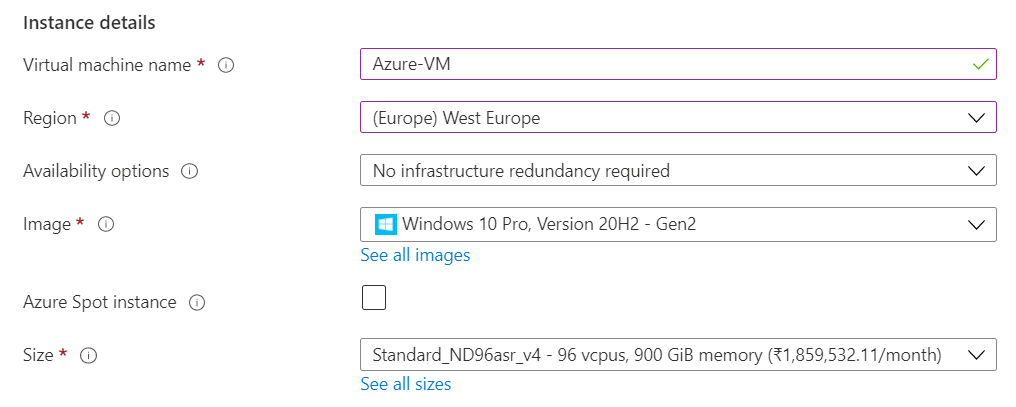
- Under Instance details, type Azure-VM (user choice) for the Virtual machine name and choose West Europe for your Region. Choose Windows 10 pro, Version 20H2-Gen2 for the Image and Standard_ND96asr_v4 for the Size (user choice). Leave the other defaults.
Note:
- Region must be decided based on where the Virtual machine is going to be deployed. To avoid the network latency, the region should be near to the location where the VM is to be deployed.
- Image selection is of user choice based on the application user can choose the image (Windows 10, Linux based OS and Windows Server)
- Under Administrator account, provide a username, such as Azureuser and a password. The password must be at least 12 characters long and meet the defined complexity requirements.

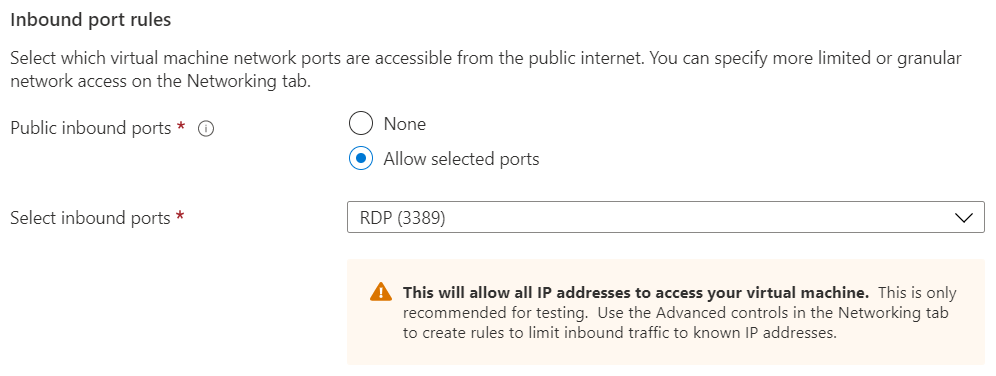
- Under Inbound port rules, choose Allow selected ports and then select RDP (3389) and HTTP (80) from the drop-down.
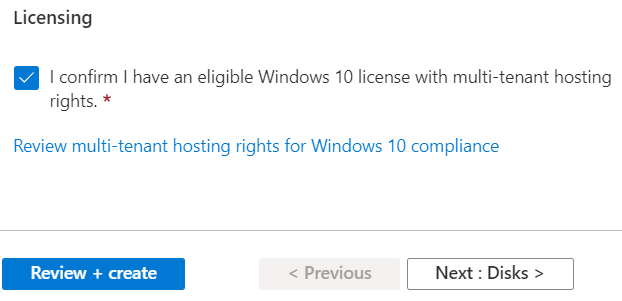
- Under the Licencing click the check box
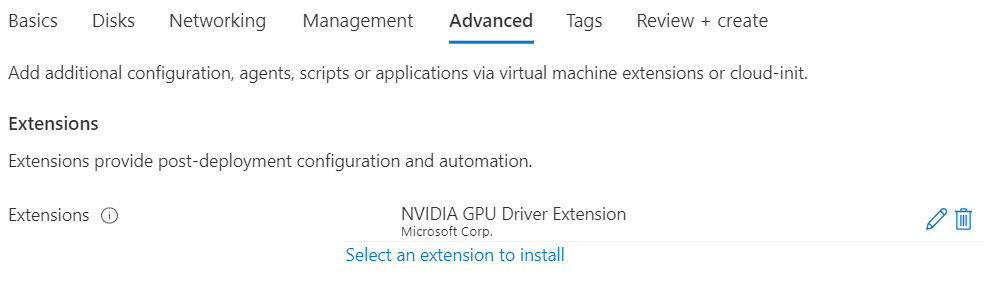
- In Advanced tab, under the Extensions click Select an extension to install, select NVIDIA GPU Driver Extension (user choice)
- Leave the remaining defaults and then select the Review + create button at the bottom of the page.
- After validation runs, select the Create button at the bottom of the page.

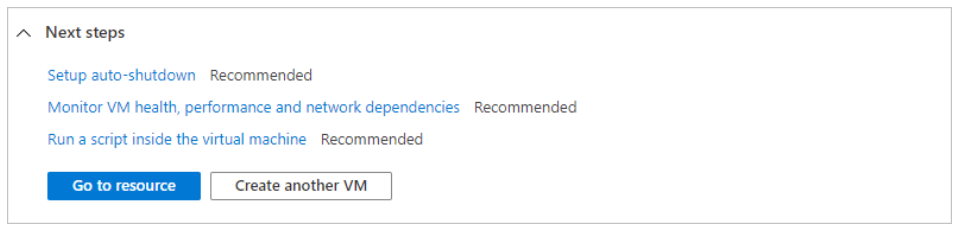
- After deployment is complete, select Go to resource.
2.4 Connect to virtual machine
Create a remote desktop connection to the virtual machine. The below steps guides user how to connect to your VM from a Windows computer. On a Mac, user need an RDP client such as this Remote Desktop Client from the Mac App Store.
- On the overview page for a virtual machine, select the Connect button then select RDP.
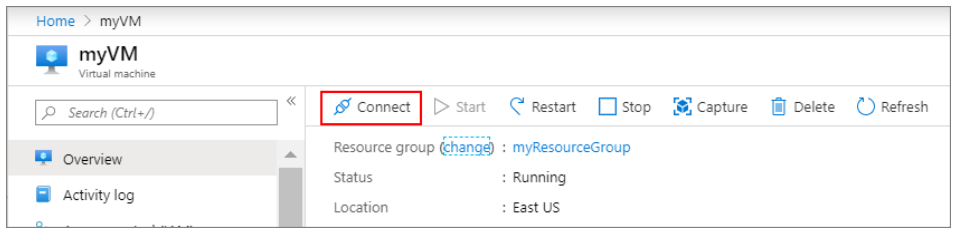
- In the Connect with RDP page, keep the default options to connect by IP address, over port 3389, and click Download RDP file.
- Open the downloaded RDP file and click Connect when prompted.
- In the Windows Security window, select More choices and then Use a different account. Type the username as localhost\username, enter the password which is created for the virtual machine, and then click OK.
- User may receive a certificate warning during the sign-in process. Click Yes or Continue to create the connection.
2.5 Install Nvidia Drivers
To take advantage of the GPU capabilities of Azure N-series VMs backed by NVIDIA GPUs, you must install NVIDIA GPU drivers.
In two ways you can install the drivers,
- TheNVIDIA GPU Driver Extensioninstalls appropriate NVIDIA CUDA or GRID drivers on an N-series VM. Install or manage the extension using the Azure portal (Ref 9)
- Install NVIDIA GPU drivers manually. (For the manual installation procedure follow https://docs.microsoft.com/en-us/azure/virtual-machines/windows/n-series-driver-setup/)
3 Install Altair EDEM Application on Virtual Machine
3.1 Download product
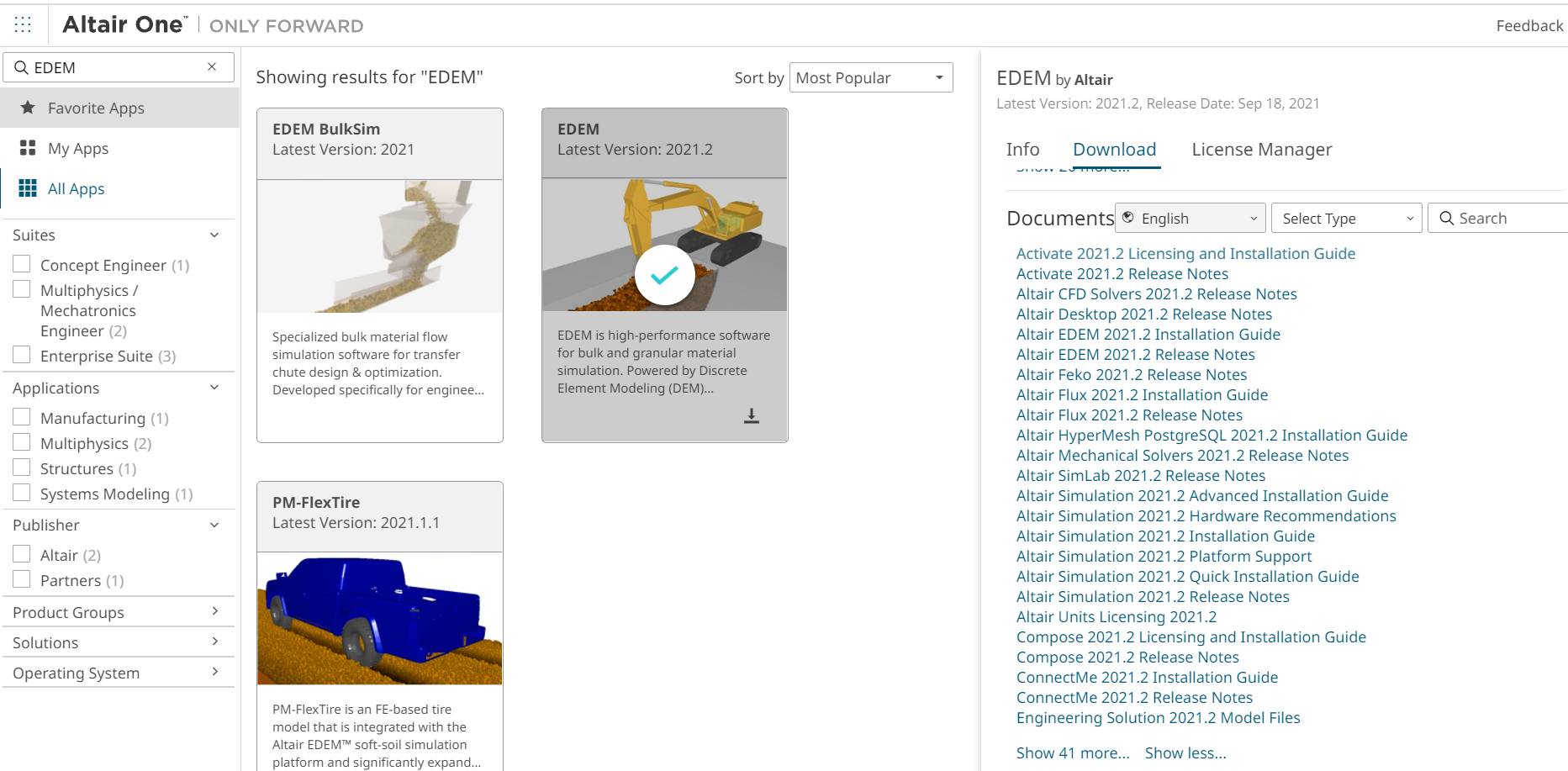
Instructions on how to download Altair products from Altair One Marketplace. Before you begin, open Altair One Marketplace in a web browser and log on.
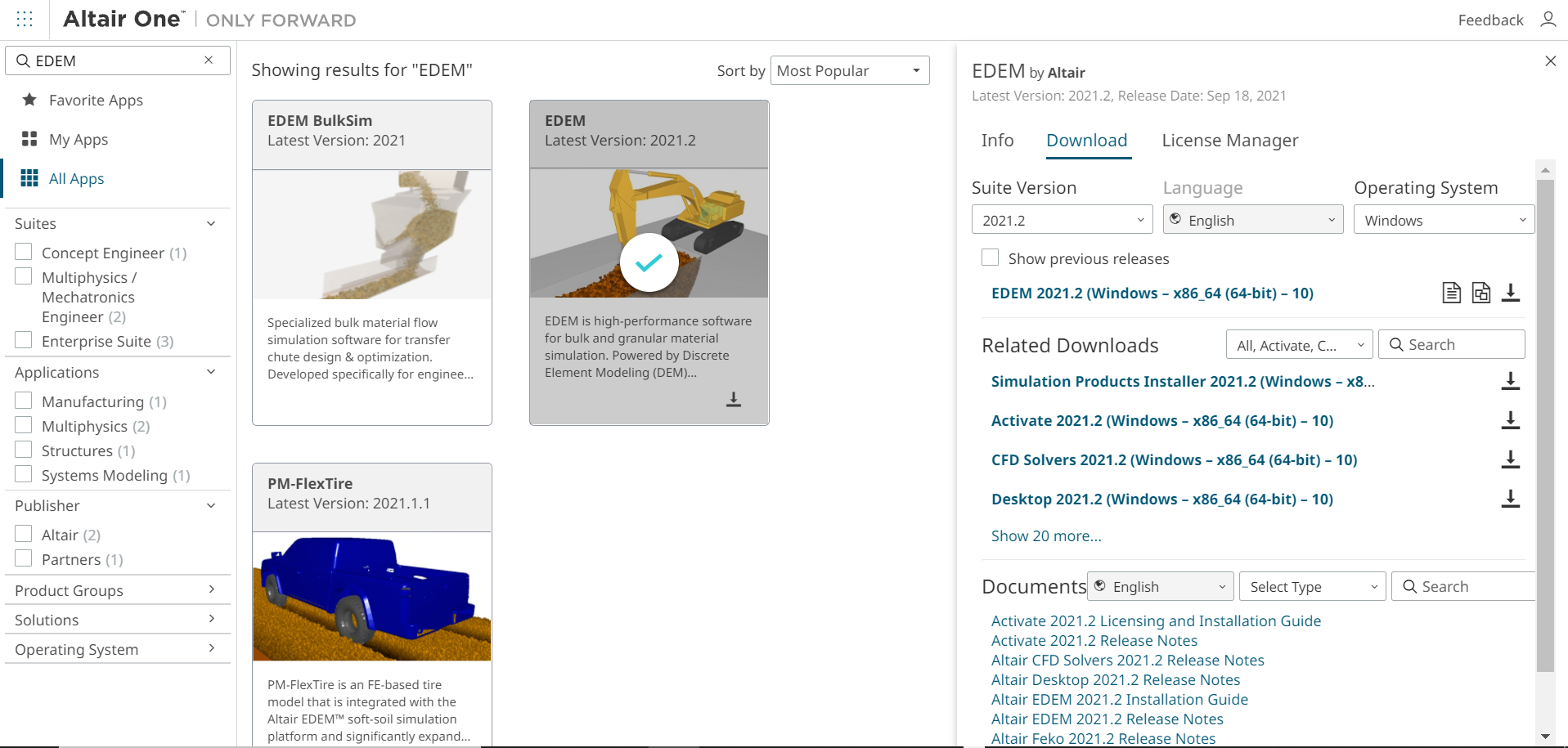
- Type EDEM in the search box and press Enter.
- In the right pane of the web browser, click the Download tab.
- From the Suite Version drop-down menu, select a suite version.
- From the Operating System drop-down menu, select a platform.
- Click the Download button to the right of software package user would like to download and click the download icon.

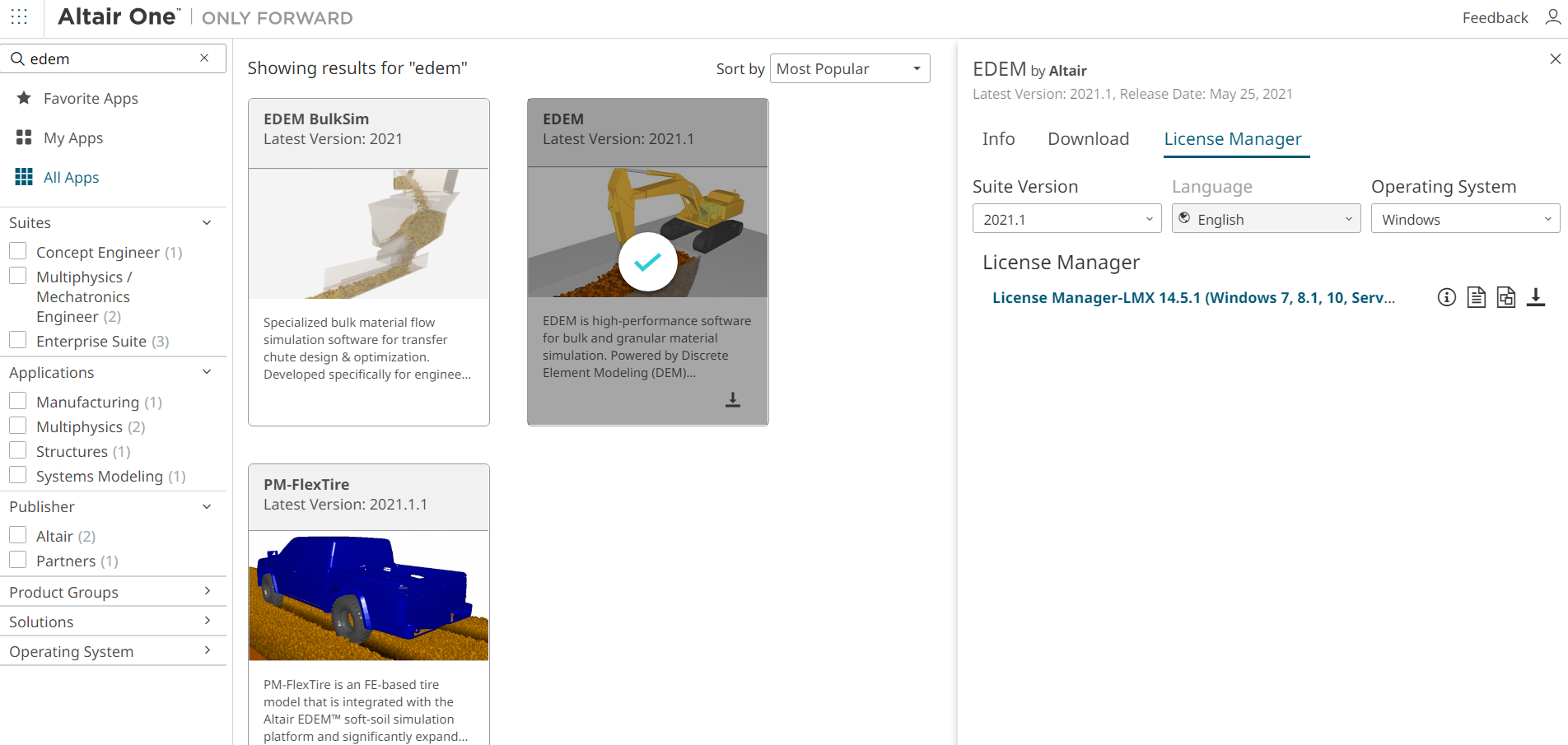
- Click the License Manager tab button to the right of each software package user would like to download and click the download icon.

3.2 License Manager installation
Follow the below steps to install the application.
- Log in to the machine on which the software is to be installed, place the downloaded files in a temporary directory.
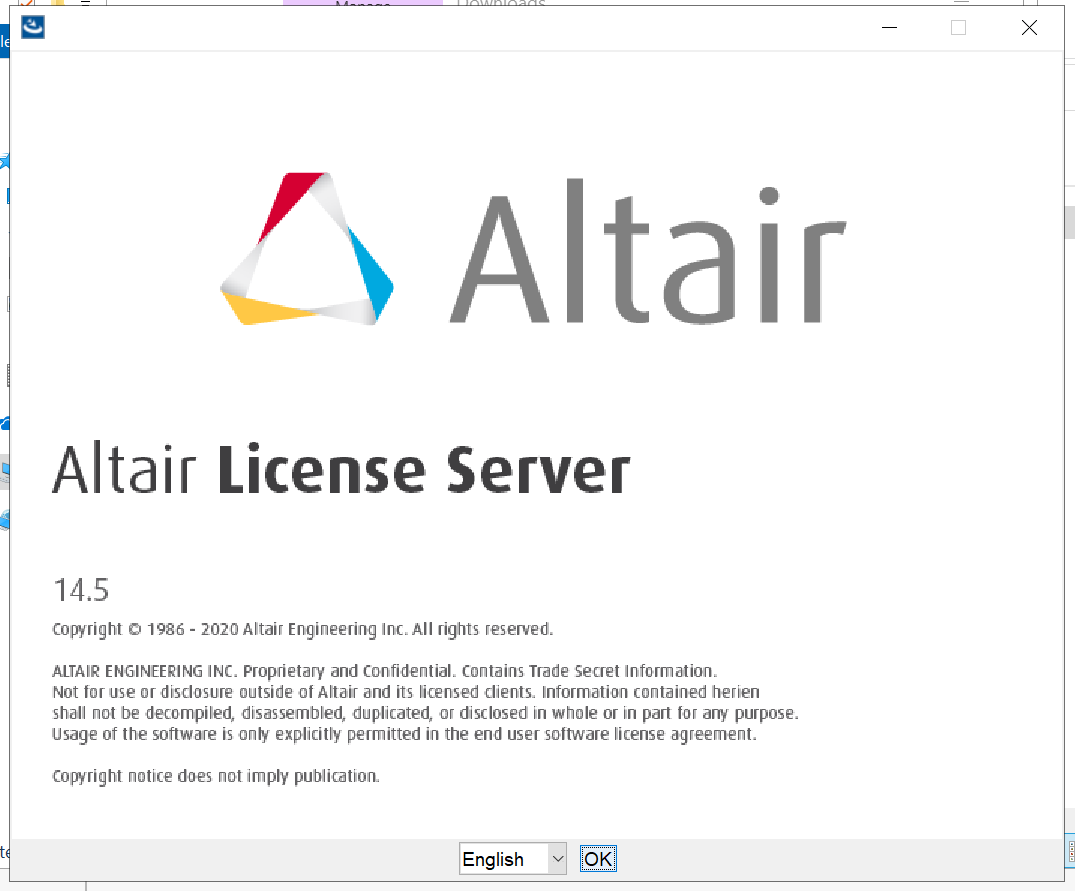
- Double-click the altair_licensing_14.5.1.win64_x64 .exe executable file to start the installer.
- Launch the setup
- Follow the prompt
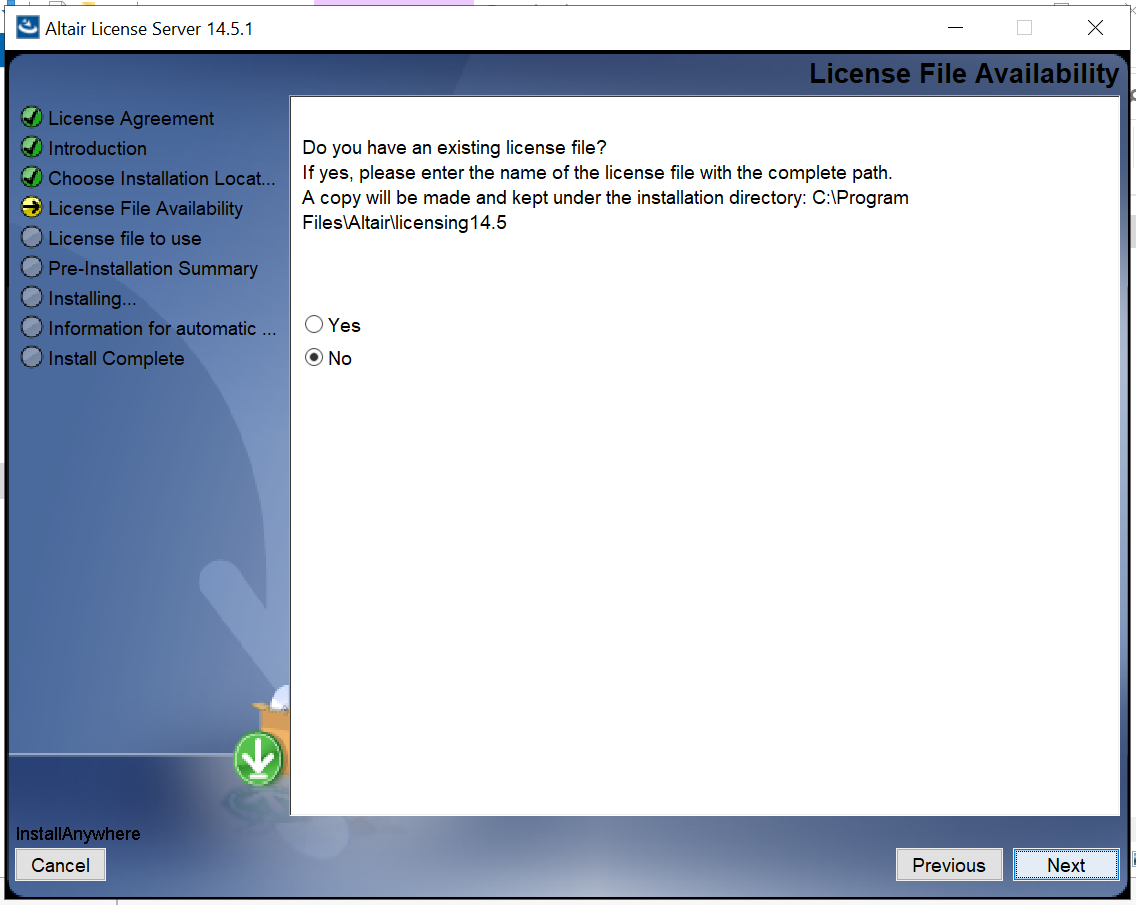
- Finish the installation
For Activating the Hosted Altair Units follow the documentation which is highlighted below,


3.3 Install EDEM application on Windows 10
Complete the following steps to extract and install the software.
- Log in to the machine on which the software is to be installed, place the downloaded files in a temporary directory.
- Double-click the AltairEDEM2021_win64.exe executable file to start the installer.
- If UAC (User Account Control) is enabled, then a prompt displays showing the Altair Engineering, Inc. digital signature for elevated permissions. Click Yes to continue with installer.
- In the multi-language selector prompt, select the proper locale and click OK to continue.
The default locale setting is specific to the install machine regional settings. The language selection only corresponds to the installer settings not to the EDEM product language settings. Altair EDEM is in English.
- In the License Agreement panel, review the agreement, select the I accept the terms of the License Agreement checkbox, and click Next to proceed.
- In the Introduction panel, click Next to continue.
- In the Choose Install Folder panel, choose the EDEM install directory and click Next
- In the Change Shortcut Folder (Local) panel, choose a Start Menu name for the EDEM install and select whether desktop shortcuts are created. click Next to continue.
- In the Pre-Installation Summary panel, review the Product Features list, Install Folder and disk space requirements. Click Install to continue.
- Once the installation completes, click Done to exit the installer.
4 Performance results of Altair EDEM 2021.2 on azure virtual machine
4.1 Altair EDEM Overview
Altair EDEM is Discrete Element Method (DEM) software for bulk and granular material simulation.
EDEM is high-performance software for bulk and granular material simulation. Powered by DEM, EDEM quickly and accurately simulates and analyses the behaviour of coal, mined ores, soils, fibers, grains, tablets, powders, and more.
EDEM simulation provides engineers with crucial insight into how those materials will interact with their equipment during a range of operation and process conditions. It can be used stand-alone or combined with other CAE tools.
Leading companies in the heavy equipment, off-road, mining, steelmaking, agriculture equipment manufacturing and food processing industries use EDEM to understand and predict granular material behaviours, evaluate equipment performance, and optimize processes.
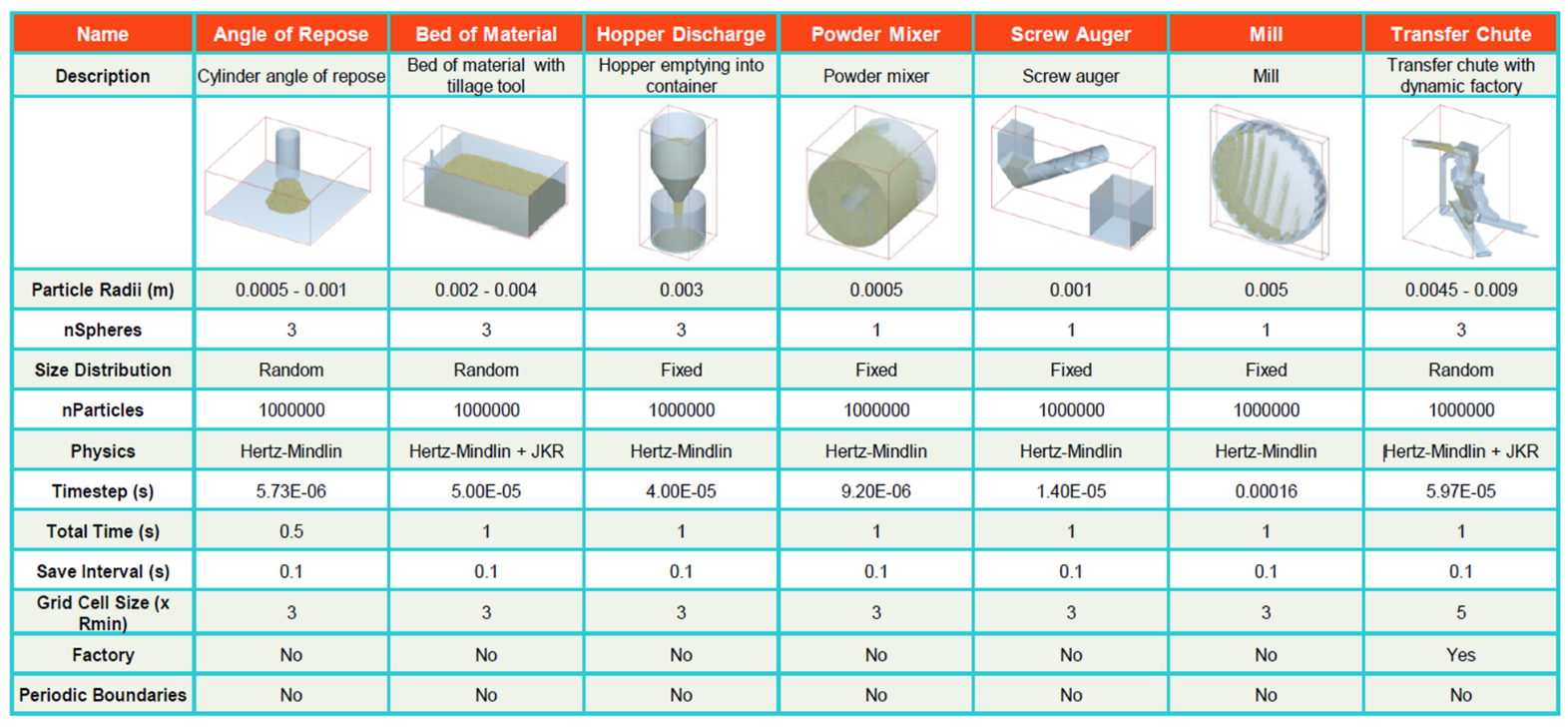
4.1.1 Model Details
A set of 7 “Real World” test case model has been for testing the performance of the EDEM on Azure VM. The model details are shown below,
4.2 Altair EDEM on Azure Platform
When it comes to performance parameters, wall clock time (time taken to complete the simulation) is one parameter which need to be carried. To carry out these complex and heavy simulations on Altair EDEM software, right hardware is must. Microsoft partnered with Nvidia provides the required and suitable Infrastructure and hardware on Azure cloud platform. Microsoft Azure provides the latest and fastest compute capabilities for both CPU & GPU intensive workloads.
4.3 Altair EDEM 2021.2 Performance Results
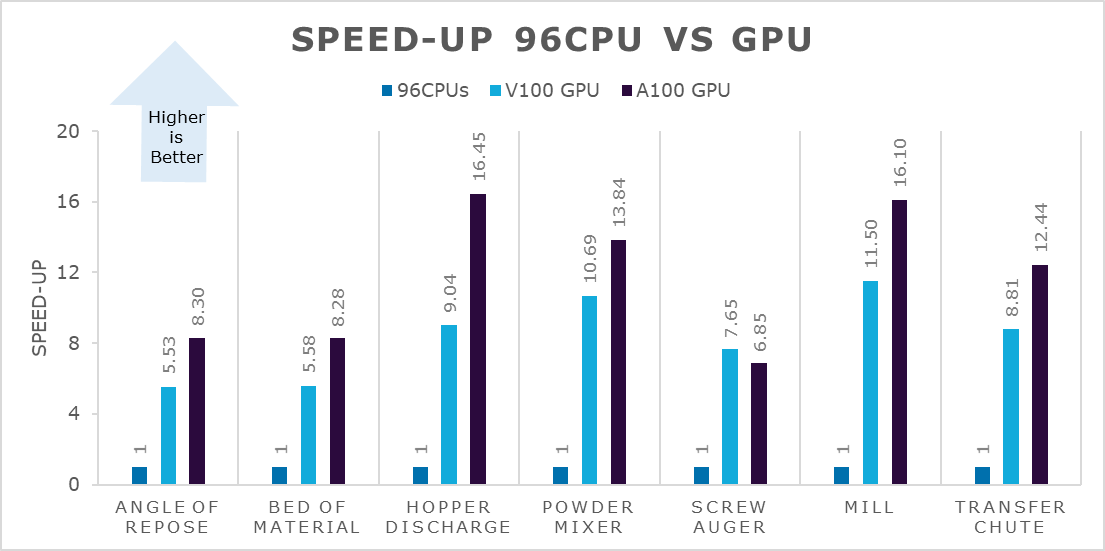
To Analyse the performance of Altair EDEM, we carried out particle simulations. The aim of this performance tests is to test the simulation performance on chosen Azure VM. The results are presented below,
Wall clock time in seconds:
|
Model Name |
96 CPUs |
A100 GPU |
V100 GPU |
|
Angle of Repose |
12819.80 |
1543.66 |
2319.39 |
|
Bed of Material |
2650.56 |
320.24 |
475.04 |
|
Hopper Discharge |
9318.89 |
566.59 |
1030.38 |
|
Powder Mixer |
14028.50 |
1013.98 |
1312.27 |
|
Screw Auger |
8871.59 |
1295.16 |
1158.98 |
|
Mill |
1339.11 |
83.18 |
116.49 |
|
Transfer Chute |
3859.01 |
310.22 |
437.92 |
Speed-up (96CPUs vs GPU):
|
Model Name |
96 CPUs |
A100 GPU |
V100 GPU |
|
Angle of Repose |
1 |
8.30 |
5.53 |
|
Bed of Material |
1 |
8.28 |
5.58 |
|
Hopper Discharge |
1 |
16.45 |
9.04 |
|
Powder Mixer |
1 |
13.84 |
10.69 |
|
Screw Auger |
1 |
6.85 |
7.65 |
|
Mill |
1 |
16.10 |
11.50 |
|
Transfer Chute |
1 |
12.44 |
8.81 |
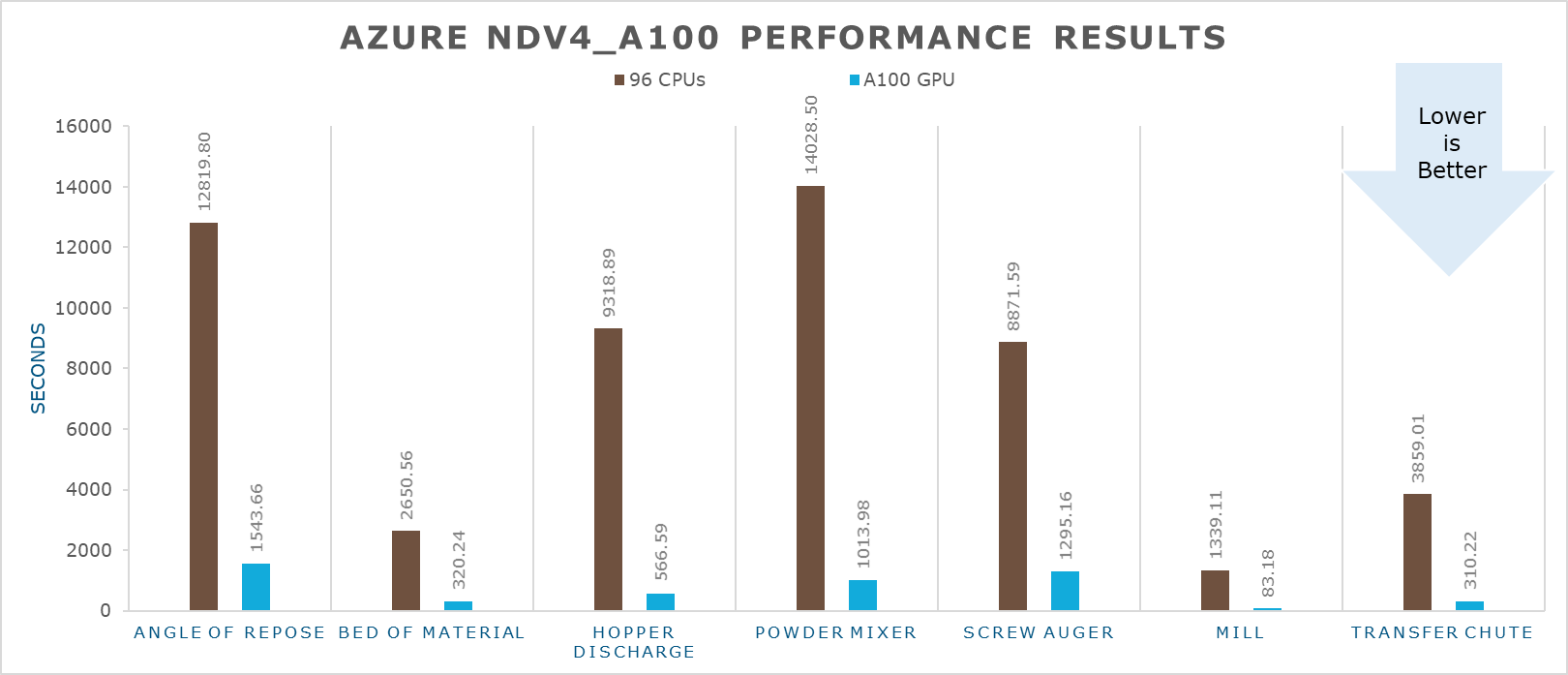
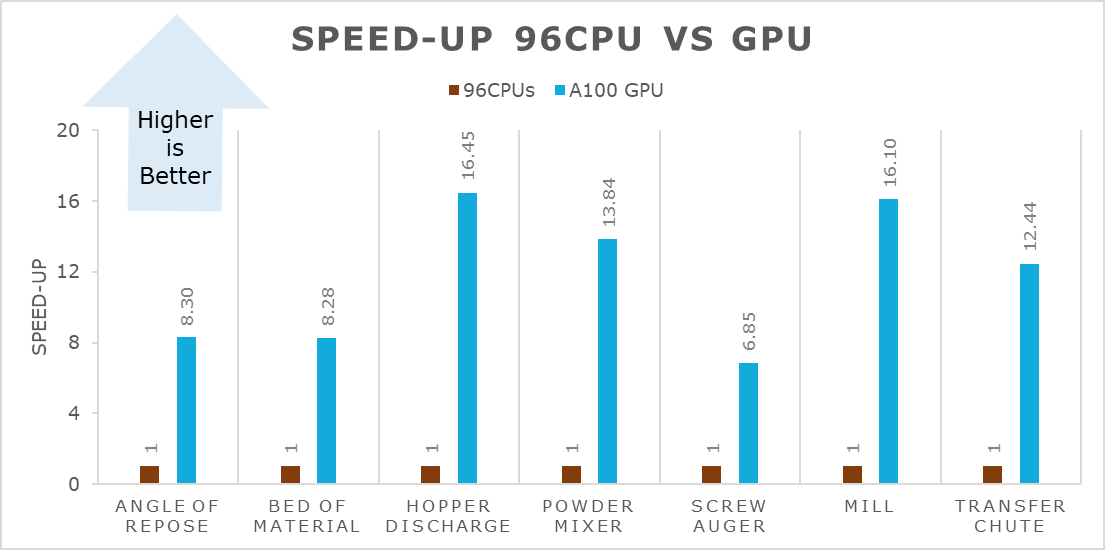
Altair Performance Results NDv4 A100 Vs NC6sv3 V100
5 Azure Cost
For the below cost reports, the application installation time is not considered and only wall clock time is considered for the cost calculation.
|
Azure VM Name |
Model Name |
Wall clock time in Sec |
Azure VM Hourly Cost |
Total Azure Cost |
|
ND96asr_v4 |
Angle of Repose |
1543.66 |
$39.77 |
$17.05 |
|
Bed of Material |
320.244 |
$39.77 |
$3.54 |
|
|
Hopper Discharge |
566.587 |
$39.77 |
$6.26 |
|
|
Powder Mixer |
1013.98 |
$39.77 |
$11.20 |
|
|
Screw Auger |
1295.16 |
$39.77 |
$14.31 |
|
|
Mill |
83.1794 |
$39.77 |
$0.92 |
|
|
Transfer Chute |
310.224 |
$39.77 |
$3.43 |
|
|
NC6s_v3 |
Angle of Repose |
2319.39 |
$4.51 |
$2.91 |
|
Bed of Material |
475.04 |
$4.51 |
$0.60 |
|
|
Hopper Discharge |
1030.38 |
$4.51 |
$1.29 |
|
|
Powder Mixer |
1312.27 |
$4.51 |
$1.64 |
|
|
Screw Auger |
1158.98 |
$4.51 |
$1.45 |
|
|
Mill |
116.49 |
$4.51 |
$0.15 |
|
|
Transfer Chute |
437.92 |
$4.51 |
$0.55 |
6 Summary
- Altair EDEM is successfully deployed and tested on ND A100_v4 series VM on Azure Platform.
- Expected speed-up is achieved with A100 GPU.
- Altair EDEM on Azure platform is ready to take complex workloads and solve the simulation in few hours with A100 GPU.
2 Deploying Virtual Machine on Azure Cloud Platform
2.1 Azure Cloud Architecture for Application
2.2 Azure Virtual Machine (VM)
2.3 Create a Virtual Machine on Azure Platform
2.4 Connect to virtual machine
3 Install Altair EDEM Application on Virtual Machine
3.2 License Manager installation
3.3 Install EDEM application on Windows 10
4 Performance results of Altair EDEM 2021.2 on azure virtual machine
4.2 Altair EDEM on Azure Platform