

Azure HPC Recipe Document for Open FOAM
1 Introduction
This document briefly explains the steps to install and run OpenFOAM application on a Virtual Machine deployed in Azure Cloud Platform and presents the performance results.
This recipe document covers the following topics: -
- Deploy & connect a required virtual machine on Azure platform.
- Download & Install Application on virtual machine.
- Performance results of current application on azure virtual machine
- Azure cost
- Summary
2 Deploy Virtual Machine on Azure Cloud Platform
2.1 Azure Cloud Architecture for Application
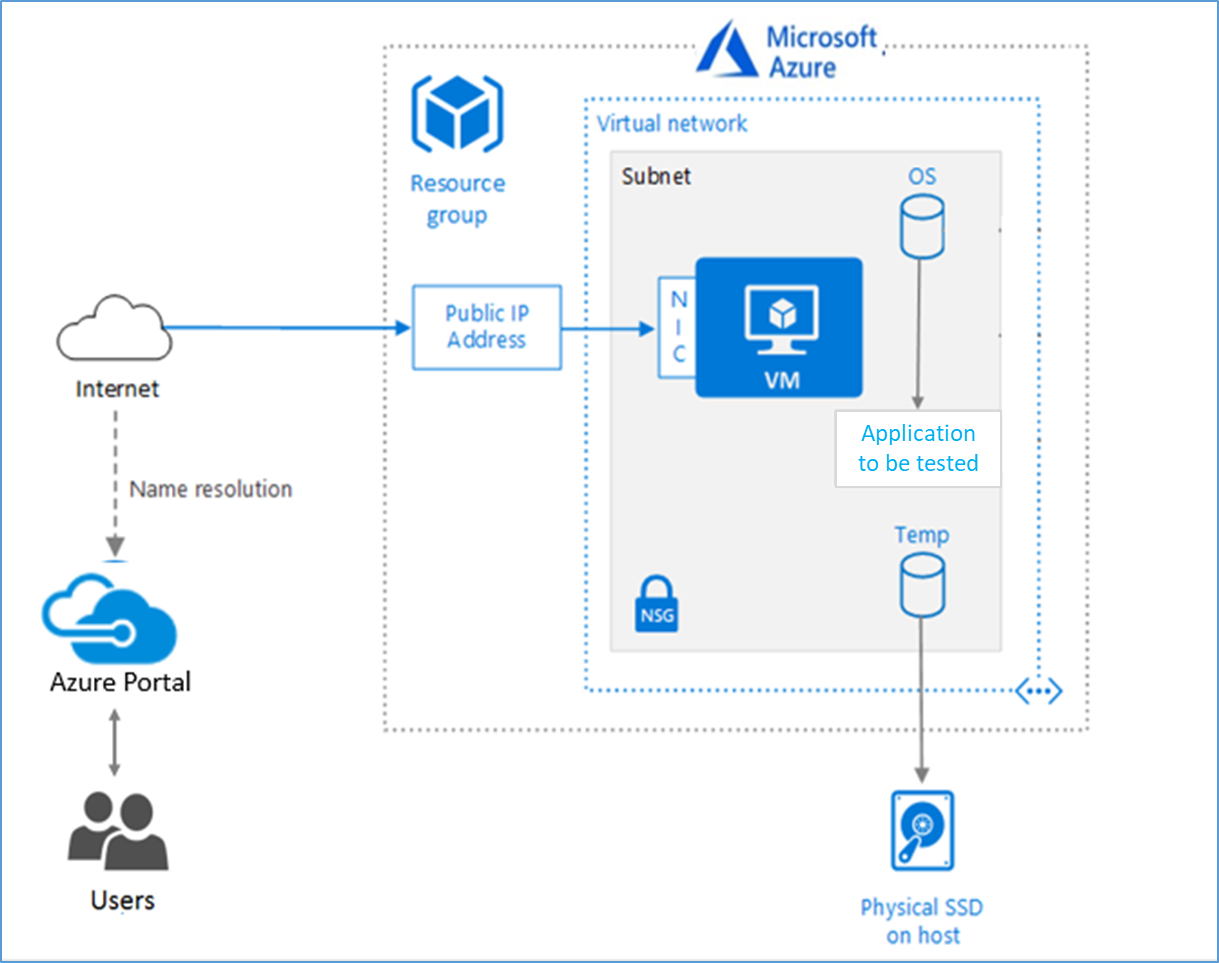
The below Architecture explains the virtual machine running on an Azure Platform
2.2 Azure Virtual Machine (VM)
A VM is a virtualized instance of a computer that can perform almost all the same functions as a computer, including running applications and operating systems.
An Azure VM gives the flexibility of virtualization without having to buy and maintain the physical hardware that runs it. However, the user still needs to maintain the VM by performing tasks, such as configuring, patching, and installing the software that runs on it.
Things to be considered before deploying a VM,
- The names of the application resources
- The location where the resources are stored
- The size of the VM
- The operating system that the VM runs
- The configuration of the VM
- The related resources that the VM needs
There are different sizes and options available for the Azure virtual machines and user can use to run apps and workloads. Depending on the workload user must choose the appropriate VM size. For complete list check this https://docs.microsoft.com/en-us/azure/virtual-machines/sizes/.
To test the performance of OpenFOAM on Azure Platform, HBv3-series virtual machine is deployed.
|
Size |
vCPU |
RAM Memory: GiB |
Memory bandwidth GB/s |
Base CPU frequency (GHz) |
All-cores frequency (GHz, peak) |
Single-core frequency (GHz, peak) |
RDMA performance (Gb/s) |
Max data disks |
|
Standard_HB120rs_v3 |
120 |
448 |
350 |
2.45 |
3.1 |
3.675 |
200 |
32 |
|
Standard_HB120-96rs_v3 |
96 |
448 |
350 |
2.45 |
3.1 |
3.675 |
200 |
32 |
|
Standard_HB120-64rs_v3 |
64 |
448 |
350 |
2.45 |
3.1 |
3.675 |
200 |
32 |
|
Standard_HB120-32rs_v3 |
32 |
448 |
350 |
2.45 |
3.1 |
3.675 |
200 |
32 |
|
Standard_HB120-16rs_v3 |
16 |
448 |
350 |
2.45 |
3.1 |
3.675 |
200 |
32 |
The current virtual machine HBv3-series VMs are optimized for HPC applications such as fluid dynamics, explicit and implicit finite element analysis, weather modelling, seismic processing, reservoir simulation, and RTL simulation. HBv3 VMs feature up to 120 AMD EPYC™ 7003-series (Milan) CPU cores, 448 GB of RAM, and no hyperthreading. HBv3-series VMs also provide 350 GB/sec of memory bandwidth; up to 32 MB of L3 cache per core, up to 7 GB/s of block device SSD performance, and clock frequencies up to 3.675 GHz.
2.3 Creation of Virtual Machine
Sign into Azure
Sign into the Azure portal by using https://portal.azure.com/
Free Trial subscriptionsaren't eligible for limit or quota increases.
After the successful sign in or sign up, one has to upgrade the Azure subscription to Pay-As-You-Go to deploy a Virtual machine. For deployment, the user must have regional vCPU quota which can be obtained by raising a request.
The step-by-step procedure to increase the vCPU quota is given below,
https://docs.microsoft.com/en-us/azure/azure-portal/supportability/per-vm-quota-requests
The step-by-step procedure to deploy Virtual machine is given below,
- Type virtual machines in the marketplace search.
- Under Services, select Virtual machines.
- In the Virtual machines page, select Create Then Virtual machine.
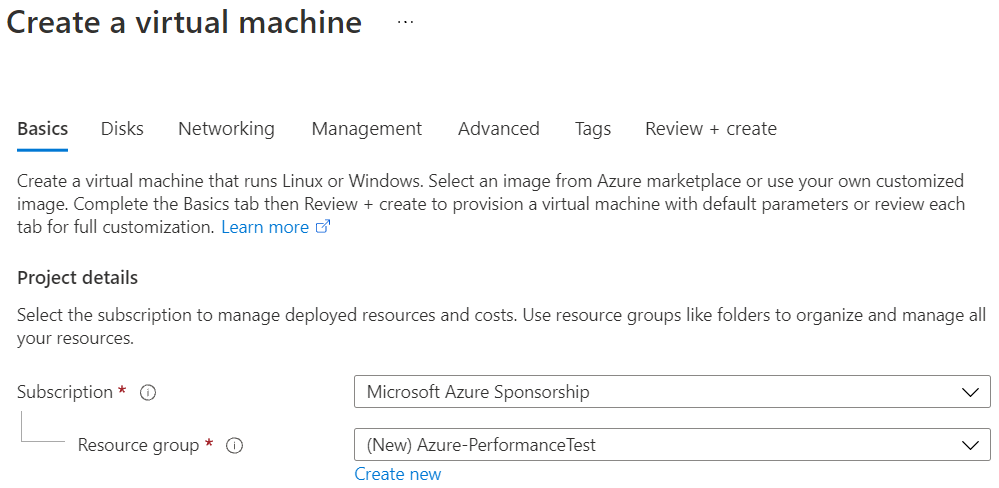
- In the Basics tab, under Project details, make sure the correct subscription is selected and then choose to Create new resource group. Type Azure-PerformanceTest(user choice) for the name.
- Under Instance details, type Azure-VM (user choice) for the Virtual machine name and choose West Europe for Region. Choose Ubuntu-20.04 HPC-Gen2 for the Image and Standard_HB120rs_v3 for the Size (user choice). Leave the other defaults.

Note:
- Region must be decided based on where the Virtual machine is going to be deployed. To avoid the network latency, the region should be near to the location where the VM is to be deployed.
- Image selection is of user choice based on the application user can choose the image (Windows 10, Linux based OS and Windows Server)
- Under Administrator account, provide a username, such as Azureuser and a password. The password must be at least 12 characters long and meet the defined complexity requirements.

- Under Inbound port rules, choose Allow selected ports and then select SSH (22) from the drop-down.

- Leave the remaining defaults and then select the Review + create button at the bottom of the page.
- After validation runs, select the Create button at the bottom of the page.

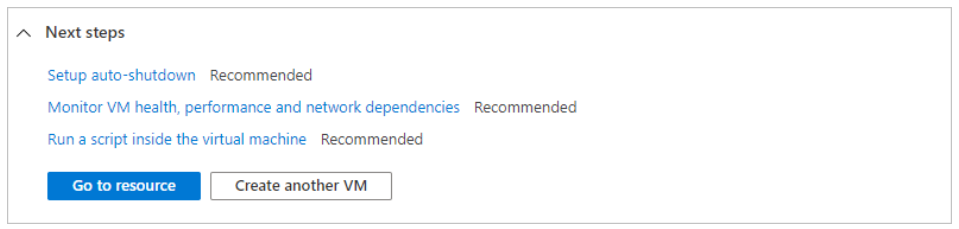
- After deployment is complete, select Go to resource.
2.4 Connect to virtual machine
Create a SSH connection to the virtual machine.
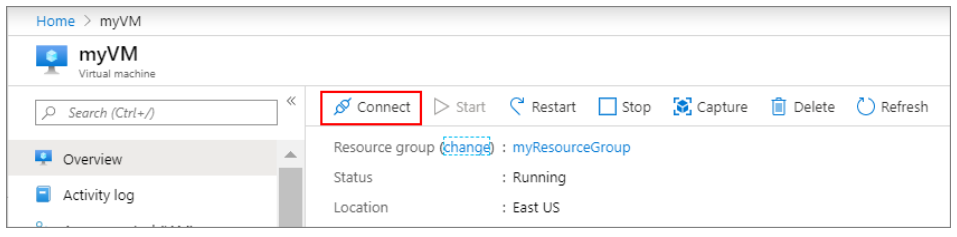
- On the overview page of a virtual machine, select the Connect button then select SSH and copy the public IP address.
- Open any SSH client tool of user choice, in this case PUTTY is used.
- Enter the IP address and port as 22 and click Open
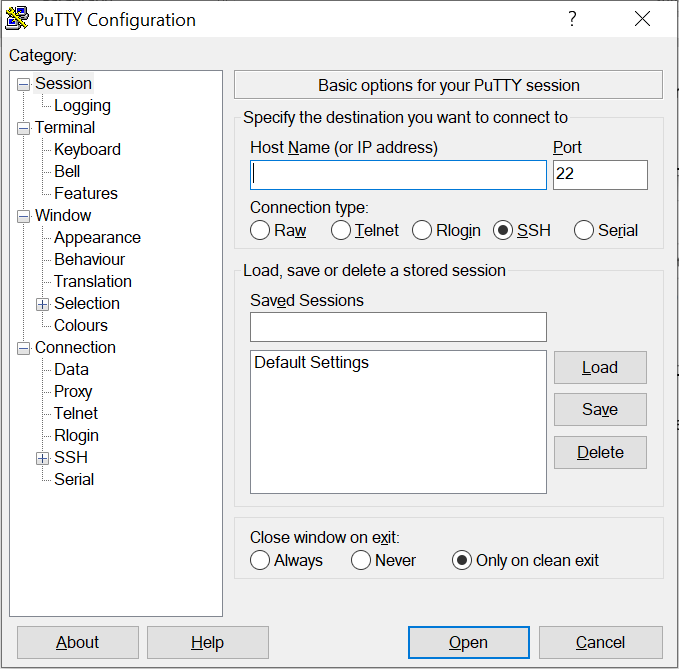
- Enter username in Login as, enter the password, and click Enter.
- Now user connected to the VM in Console
3 Install OpenFOAM v2106
3.1 Download product
Instructions on how to download OpenFOAM from OpenFOAM web portal.
- To download Ubuntu repository, use the below command.
curl -s https://dl.openfoam.com/add-debian-repo.sh | sudo bash
- For more information of different version of OpenFOAM, explore below mentioned web url:
Link: https://develop.openfoam.com/Development/openfoam/-/wikis/precompiled
3.2 Install OpenFOAM v2106 on Linux
- To install preferred OpenFOAM package:
sudo apt-get install openfoam2106-default
- For more information related to installation, refer below link:
Link: https://www.openfoam.com/current-release
- Installation location of OpenFOAM is as below
/usr/lib/openfoam/openfoam2106/
- For a persistent OpenFOAM environment, the OpenFOAM bashrc file can be sourced from your ~/.bashrc file by adding a line resembling the following to that file:
source /usr/lib/openfoam/openfoam2106/etc/bashrc
The exact path used will change depending on the OpenFOAM version.
For more information, about OpenFOAM refer the below link:
Link: https://www.openfoam.com/
4 Performance Results of OpenFOAM v2106
4.1 Overview
OpenFOAM is leading free open source software for Computational Fluid Dynamics. The wider user-base for OpenFOAM has grown steadily and produced valuable functionality to complement the official releases. The key to OpenFOAM’s future is bringing the Community together to participate within a welcoming, co-operative framework, ensuring the project’s longevity and maintaining its core values of being freely-available and open-source. The core entity promoting its open, collaborative and progressive development and maintenance, with the declared long-term support of partners in industry, academia and key individuals.
4.2 Model Details
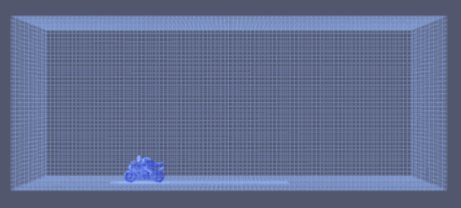
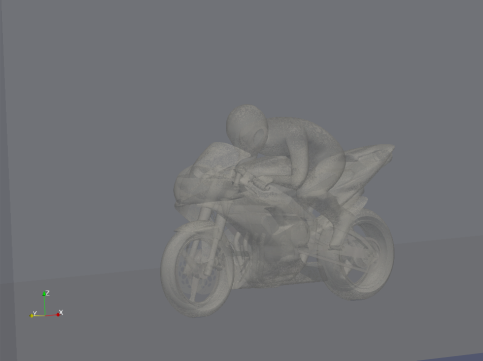
The Motorbike with 21M cells test case model is considered as standard performance test case for testing the expected performance of the OpenFOAM on Azure VM. The models are shown below,


4.3 Azure Platform
When it comes to performance parameters, wall clock time (time taken to complete the simulation) is one parameter, which needs to be analysed. To carry out these simulations on OpenFOAM software, right hardware is required. Microsoft partnered with AMD provides the required and suitable Infrastructure and hardware on Azure cloud platform. Microsoft Azure provides the latest and fastest compute capabilities for CPU intensive workloads.
|
Operating System Details |
|
|
Operating system version |
Ubuntu Linux release 20.04.3 |
|
OS Architecture |
X86-64 |
|
MPI |
Open MPI |
4.4 Performance Results
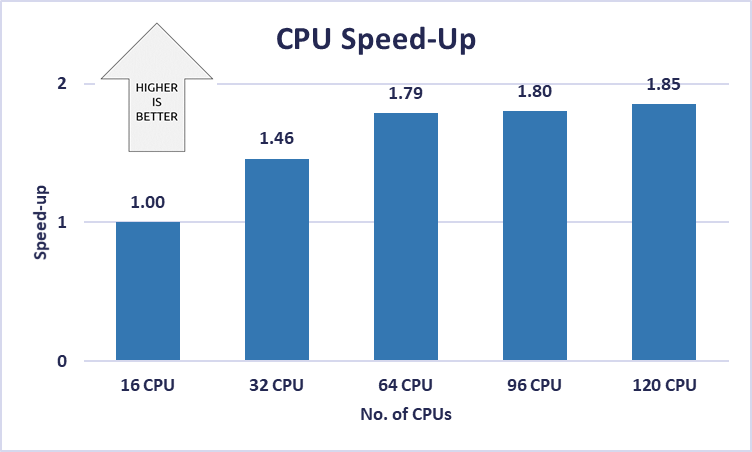
Simulation is carried out to see the performance of chosen Azure VM and the optimised CPU core configuration on single node. Refer chapter 2.2 for the VM specifications. The results are presented below,
Solver: SimpleFOAM
Wall clock time in seconds
|
Model Name |
#16 CPU |
#32 CPU |
#64 CPU |
#96 CPU |
#120 CPU |
|
Motorbike (21M) |
394.81 |
270.48 |
221.15 |
219.45 |
213.24 |
Speed-up
|
Model Name |
#16 CPU |
#32 CPU |
#64 CPU |
#96 CPU |
#120 CPU |
|
Motorbike_21M |
1.00 |
1.46 |
1.79 |
1.80 |
1.85 |
5 Azure Cost
For the below cost reports, the application installation time is not considered and only wall clock time is considered for the cost calculation. The Hourly rates reported are subject to change. For the current rate, please refer the link https://azure.microsoft.com/en-in/pricing/calculator/.
|
Azure VM Name |
Model Name |
# CPU |
Wall clock time in Sec |
Azure VM Hourly Cost |
Total Azure Cost |
|
HBv3 |
Motorbike_21M |
16 |
394.81 |
$4.68 |
$0.51 |
|
32 |
270.48 |
$4.68 |
$0.35 |
||
|
64 |
221.15 |
$4.68 |
$0.29 |
||
|
96 |
219.45 |
$4.68 |
$0.29 |
||
|
120 |
213.24 |
$4.68 |
$0.28 |
6 Summary
- OpenFOAM is successfully deployed and tested on HB120rs_v3 series VM on Azure Platform.
- Expected Speed-up is achieved up to 64 CPU cores.