

Azure HPC Recipe Document for Samadii Dem
1 Introduction
This document briefly explains the steps to install and run Samadii-Dem application on a Virtual Machine deployed in Azure Cloud Platform and presents the performance results.
This recipe document covers the following topics: -
- Deploy & connect a required virtual machine on Azure platform.
- Install required NVIDIA drivers in virtual machine.
- Install license manager for current application.
- Install Application on virtual machine.
- Performance results of current application on azure virtual machine
- Azure consumption
- Summary
2 Deploy Virtual Machine on Azure Cloud Platform
2.1 Azure Cloud Architecture for Application
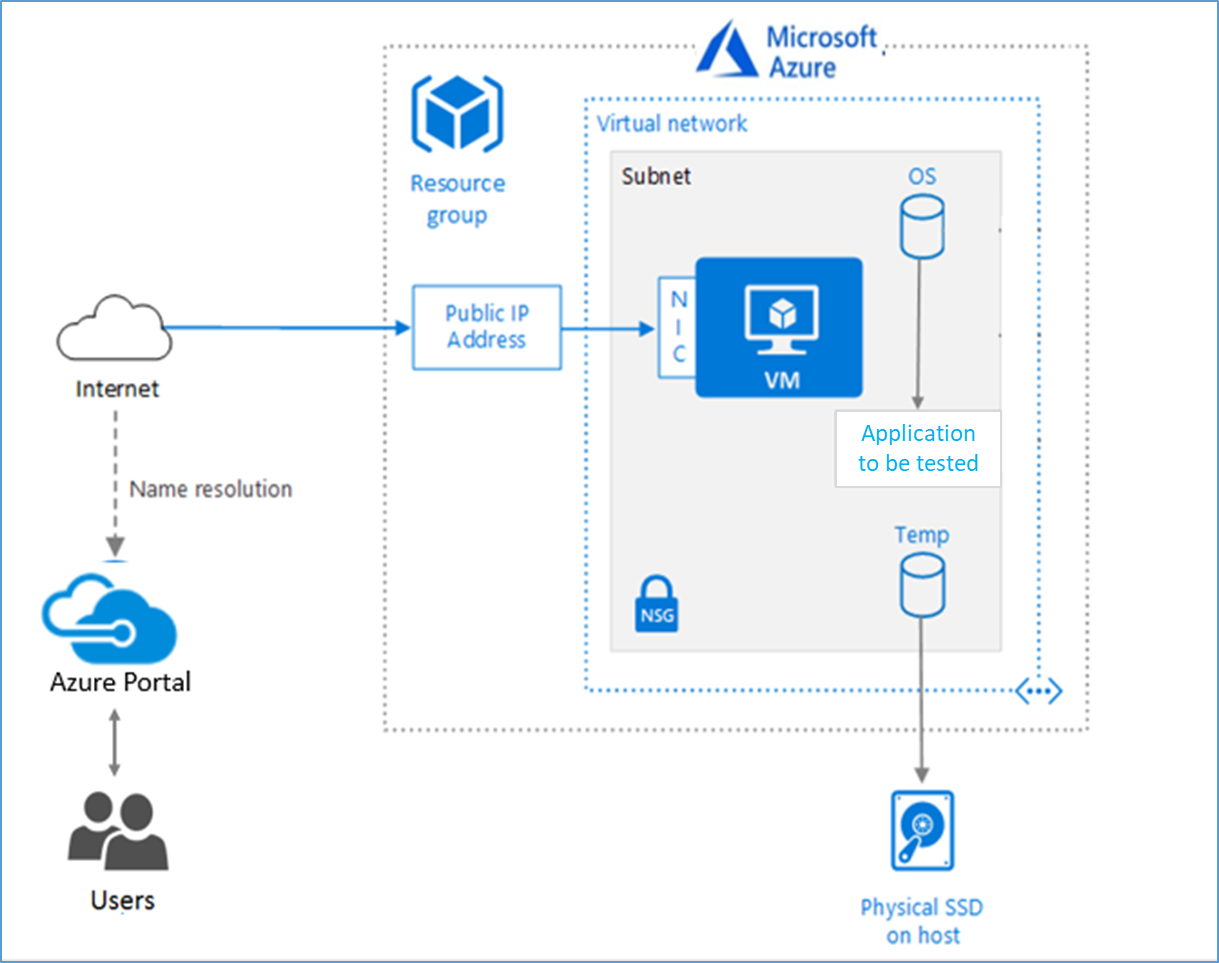
The below Architecture explains the virtual machine running on an Azure Platform
2.2 Azure Virtual Machine (VM)
A VM is a virtualized instance of a computer that can perform all the same functions as a computer, including running applications and operating systems.
An Azure VM gives the flexibility of virtualization without having to buy and support the physical hardware that runs it. However, user still need to keep the VM by performing tasks, such as configuring, patching, and installing the software that runs on it.
Things to be considered before deploying a VM,
- The names of the application resources
- The location where the resources are stored
- The size of the VM
- The operating system that the VM runs
- The configuration of the VM
- The related resources that the VM needs
There are varied sizes and options for the Azure virtual machines one can use to run apps and workloads. Depending on the workload user must choose the proper VM size or complete list check this https://docs.microsoft.com/en-us/azure/virtual-machines/sizes/.
To evaluate the performance of Samadii-Plasma on Azure Platform , NVv3, NCasT4_v3, NCv3 , NDv4 virtual machines are deployed
|
VM Name |
vCPU |
Memory: GiB |
Max data disks |
GPU |
GPU memory: GiB |
Max uncached disk throughput: IOPS/MBps) |
Temp Storage (SSD): GiB |
Max NICs |
|
Standard ND96asr_v4 |
96 |
900 |
32 |
8 |
40 |
80,000 / 800 |
6000 |
8 |
|
Standard_NC6s_v3 |
6 |
112 |
12 |
1 |
16 |
20,000/200 |
736 |
4 |
|
Standard_NC12s_v3 |
12 |
224 |
24 |
2 |
32 |
40,000 / 400 |
1474 |
8 |
|
Standard_NC4as_T4_v3 |
4 |
28 |
8 |
1 |
16 |
- |
180 |
2 |
|
Standard_NC64as_T4_v3 |
64 |
440 |
32 |
4 |
64 |
- |
2880 |
8 |
|
Standard NV12s_v3 |
12 |
112 |
12 |
1 |
112 |
20,000/200 |
320 |
4 |
|
Standard NV24s_v3 |
24 |
224 |
24 |
2 |
224 |
40,000/400 |
640 |
8 |
To Analyse the performance of Samadii-Dem on Azure Platform below VM’s are deployed.
1) Standard NV24s v3: NVv3-series is powered by NVIDIA M60GPUs and Intel E5-2690 v4 (Broadwell) CPUs (Central Processing Unit) (Central Processing Unit) (2.60GHz). The “NV24s_v3” VM has NVIDIA Grid Technology with Intel cores and Intel Hyper-Threading Technology. Each GPU in NVv3 instances comes with a GRID (Group Retail Risk Data) license, this license gives the flexibility to use an NV instance as a virtual workstation for a single user, or 25 concurrent users can connect to the VM for a virtual application scenario.
2) Standard NC12s_v3: This VM belongs to the Ncv3-series These VMs (virtual machines) are powered by NVIDIA Tesla V100 GPUs (graphics processing units). These GPUs can supply 1.5x the computational performance of the NCv2-series.
3) Standard_NC64as_T4_v3: These Series VMs are powered by Nvidia T4GPUs and AMD EPYC 7V12(Rome) CPUs. The “NC64as_T4_v3” VM has 4 NVIDIA T4 GPUs with 16 GB of memory each, up to 64 non-multithreaded AMD processor cores with a total memory of 448GB.
4) Standard ND96asr_v4: The ND A100 v4 series starts with a single virtual machine (VM) and eight NVIDIA Ampere A100 Tensor Core GPUs. ND A100 v4-based deployments can scale up to thousands of GPUs with a 1.6 Tb/s of interconnect bandwidth per VM. Each GPU within the VM is provided with its own dedicated, topology-agnostic 200 Gb/s NVIDIA Mellanox HDR InfiniBand connection. These connections are automatically configured between VMs occupying the same virtual machine scale set, and support GPU Direct RDMA.
3 Create a Virtual Machine on Azure Platform
Sign into Azure
Sign into the Azure portal by using https://portal.azure.com/
Free Trial subscriptionsare not eligible for limit or quota increases. If user have aFree Trial subscription, user can upgrade to aPay-As-You-Gosubscription
After the successful sign in or sign up, one must upgrade the Azure subscription to Pay-As-You-Go to deploy a Virtual machine. For deployment, the user must have regional vCPU quota which can be obtained by raising a request.
The step-by-step procedure to increase the vCPU quota is given below,
https://docs.microsoft.com/en-us/azure/azure-portal/supportability/per-vm-quota-requests
The step-by-step procedure to deploy Virtual machine is given below,
- Type virtual machines in the marketplace search.
- Under Services, select Virtual machines.
- In the Virtual machines page, select Create Then Virtual machine.
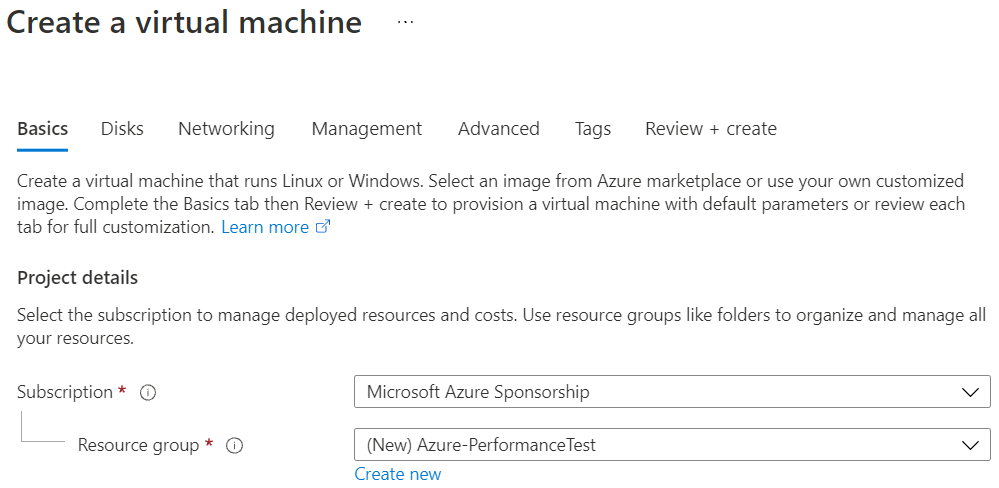
- In the Basics tab, under Project details, make sure the correct subscription is selected and then choose to Create new resource group. Type Azure- PerformanceTest(user choice) for the name.
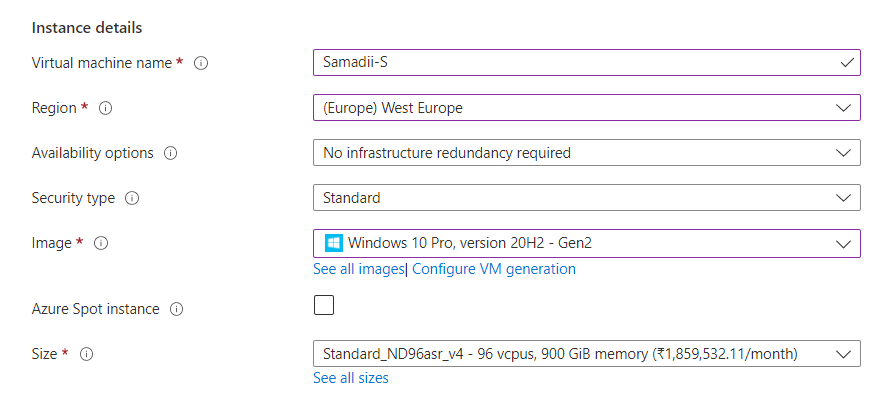
- Under Instance details, type Azure-VM (user choice) for the Virtual machine name and choose West Europe for your Region. Choose Windows 10 pro, Version 20H2-Gen2 for the Image and Standard_ND96asr_v4 for the Size (user choice). Leave the other defaults.
Note:
- Region must be decided based on where you are going to deploy a Virtual machine. To avoid the network latency, the region should be near to the location where the VM is to be deployed.
- Image selection is of user choice based on the application user can choose the image (Windows 10, Linux based OS (Operating System) and Windows Server)
- Under Administrator account, provide a username, such as Azureuser and a password. The password must be at least 12 characters long and meet the defined complexity requirements.

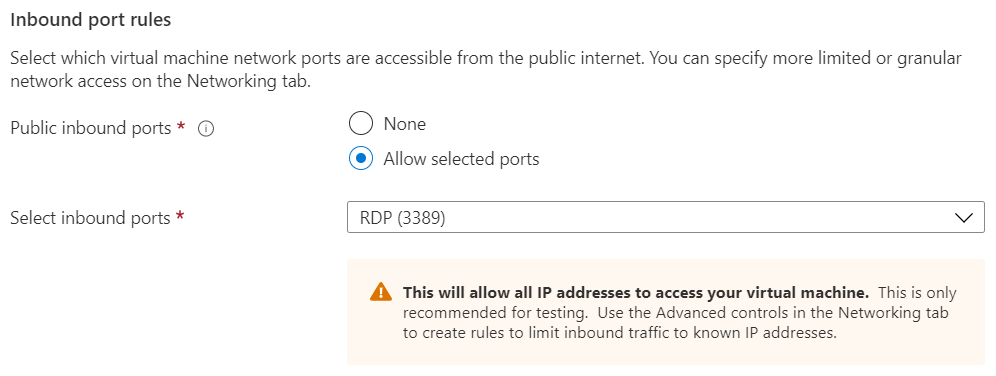
- Under Inbound port rules, choose Allow selected ports and then select RDP (3389) and HTTP (80) from the drop-down.
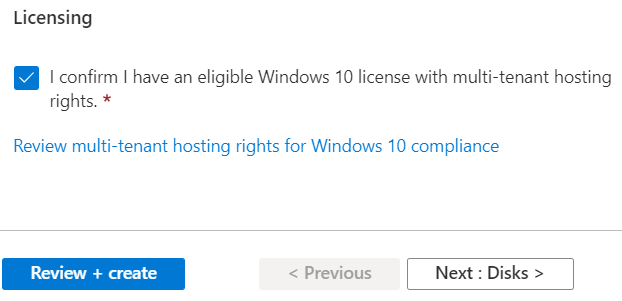
- Under the Licencing click the check box
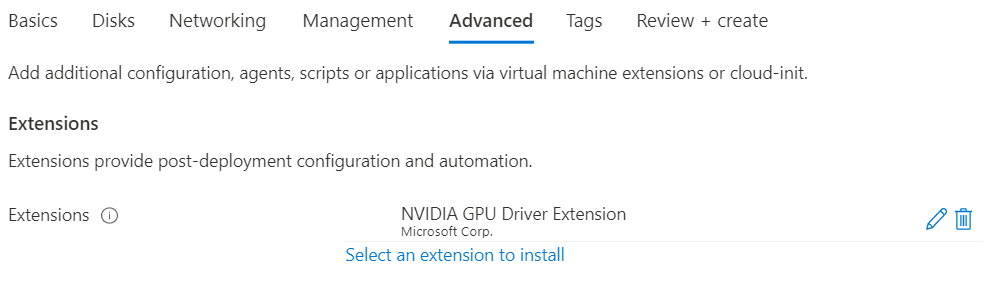
- In Advanced tab, under the Extensions click Select an extension to install, select NVIDIA GPU Driver Extension (user choice)
- Leave the remaining defaults and then select the Review + create button at the bottom of the page.
- After validation runs, select the Create button at the bottom of the page.

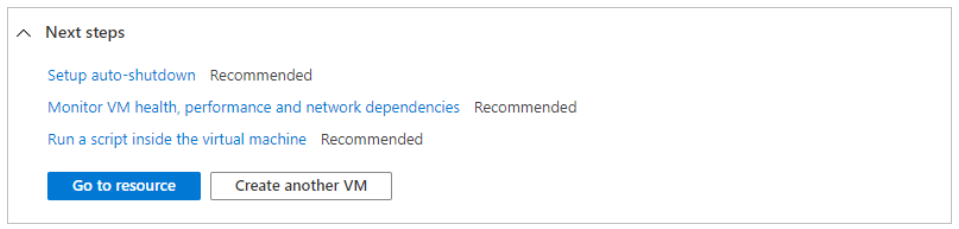
- After deployment is complete, select Go to resource.
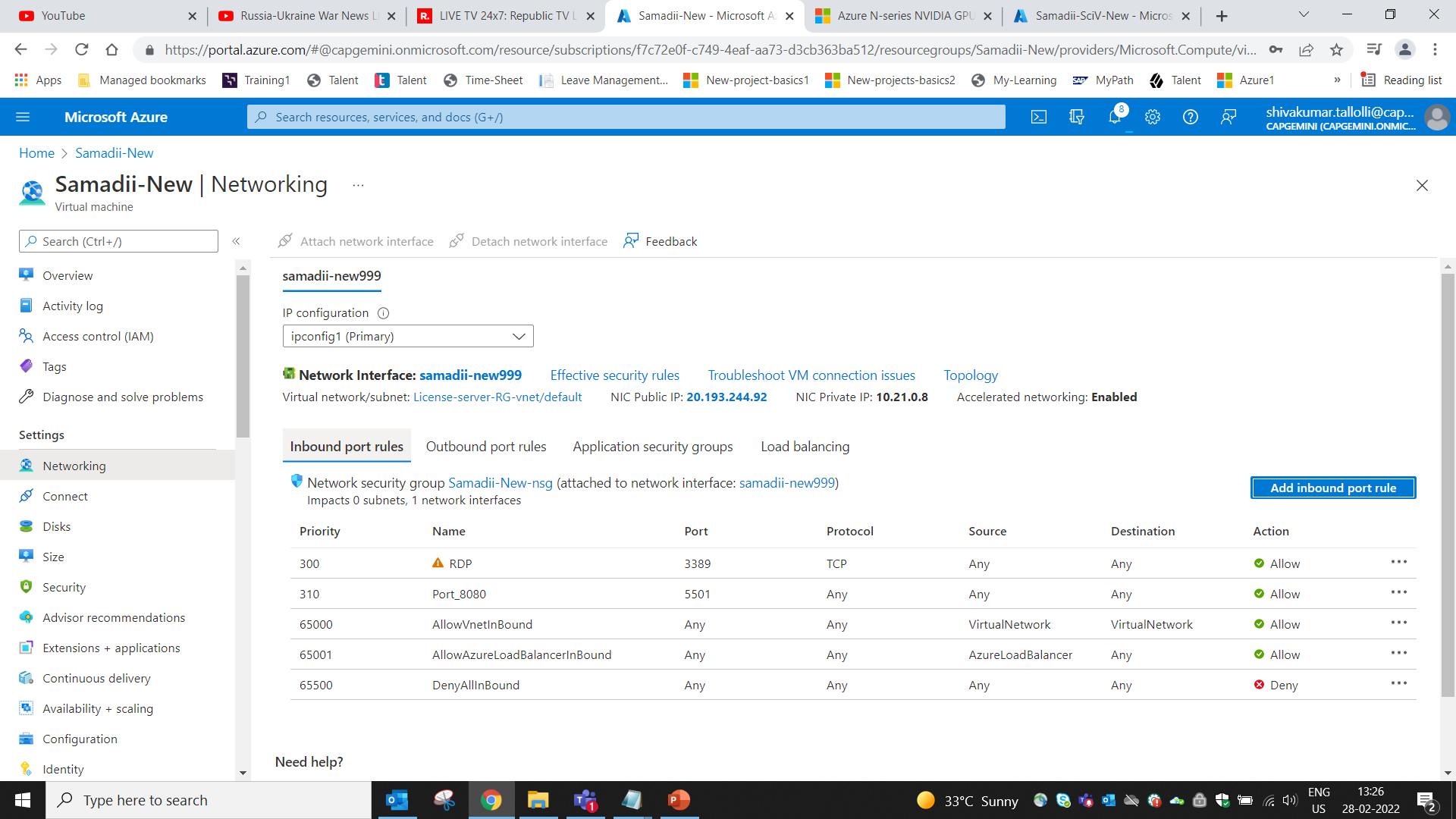
- Add inbound and outbound port rules with Port # 5501

3.1 Connect to virtual machine
Create a remote desktop connection to the virtual machine. These directions tell user how to connect to a VM from a Windows computer. On a Mac, user need an RDP (Remote Desktop Protocol) client such as this Remote Desktop Client from the Mac App Store.
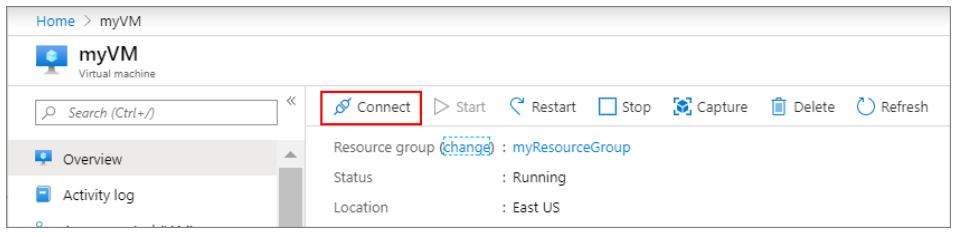
- On the overview page for a virtual machine, select the Connect button then select RDP.
- In the Connect with RDP page, keep the default options to connect by IP (Internet Protocol) address, over port 3389, and click Download RDP file.
- Open the downloaded RDP file and click Connect when prompted.
- In the Windows Security window, select More choices and then Use a different account. Type the username as localhost\username, enter the password created for the virtual machine, and then click OK.
- User may receive a certificate warning during the sign-in process. Click Yes or Continue to create the connection.
3.2 Install Nvidia Drivers
To take advantage of the GPU capabilities of Azure N-series VMs backed by NVIDIA GPUs (graphics processing units), user must install NVIDIA GPU drivers.
In two ways user can install the drivers,
- TheNVIDIA GPU Driver Extensioninstalls proper NVIDIA CUDA (Compute Unified Device Architecture) or GRID drivers on an N-series VM. Install or manage the extension using the Azure portal.
- Install NVIDIA GPU drivers manually. (For the manual installation procedure follow https://docs.microsoft.com/en-us/azure/virtual-machines/windows/n-series-driver-setup/ )
4 Install Samadii-Dem Application on Virtual Machine:
4.1 License Manager Installation
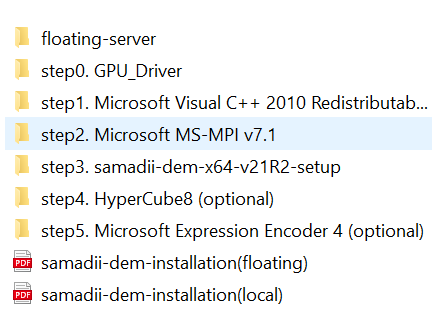
Data provided by ISV (Independent Software Vendor) will have all the installation files needed for Dem as shown below.
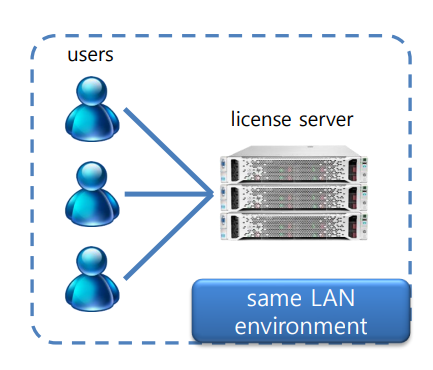
1) samadii-lm is the floating license server program. It is a windows service program that allows multiple users to access the license in the same LAN (Local Area Network) environment. Licence server needs to be installed in the Licence server VM which is different from the client VM where actual Samadii-Dem application will be installed.
2) Install the Samadii-Dem License Server using the licence setup file “samadii-lms-v5.0.2-setup” provided in the input data. 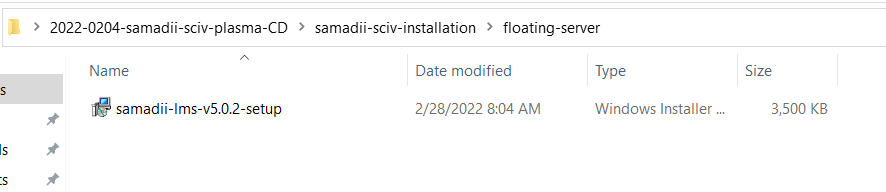
3) Once the licence server is setup, a folder with name Network License Manager will be created in the path “C:\Program Files\Metariver Technology\samadii-lms-v5 “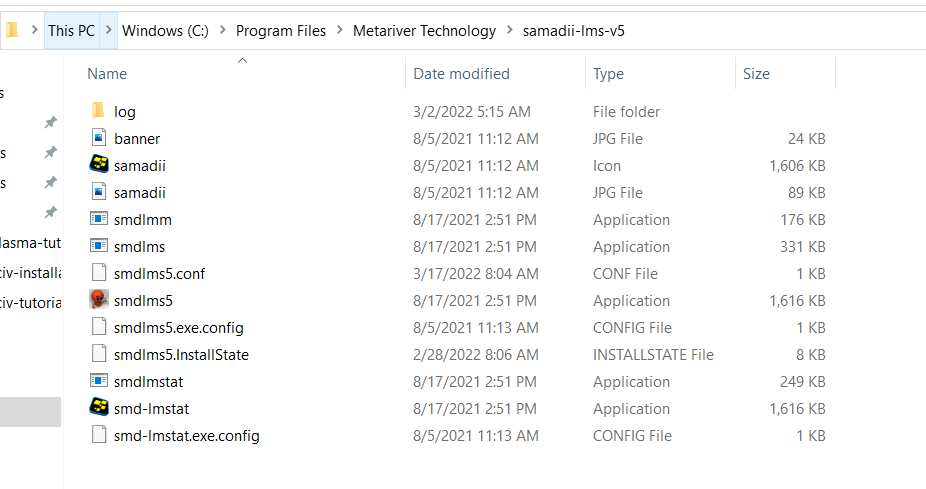
4) Please run Control Panel -> System and Security -> Allow apps in Windows Firewall.
5) In the licence Server VM add the Samadii-Dem licence manager exe file to firewall exceptions as shown below in the windows defender firewall.
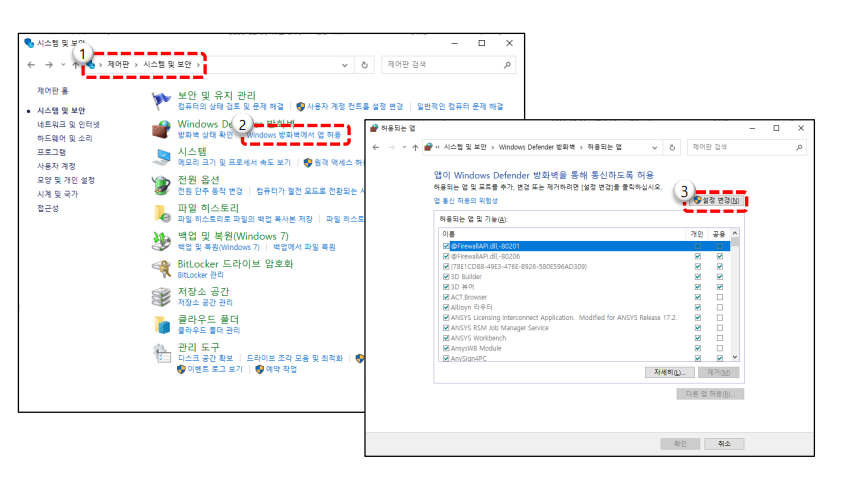
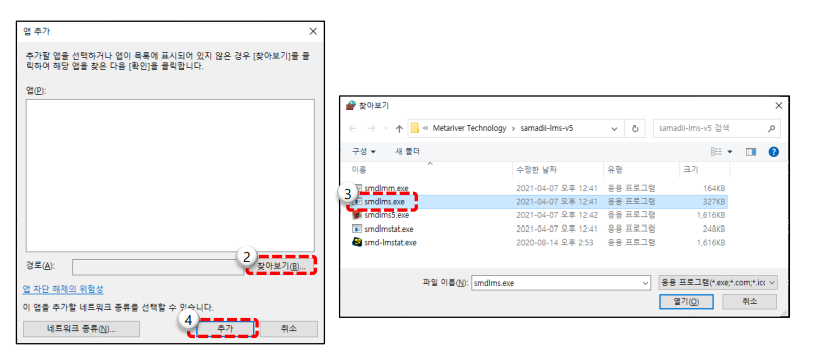
6) 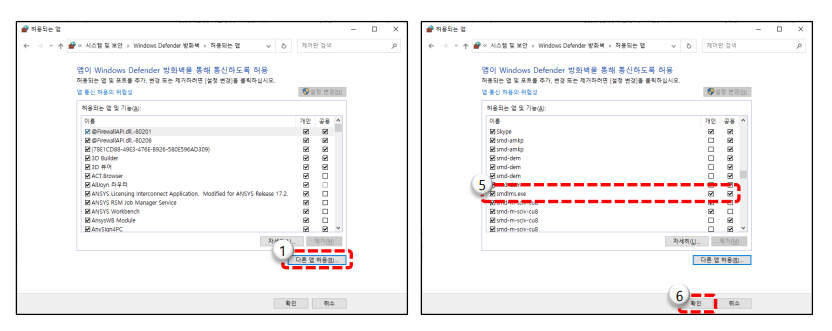 Start the Samadii – Dem licence services in Task manager as show below.
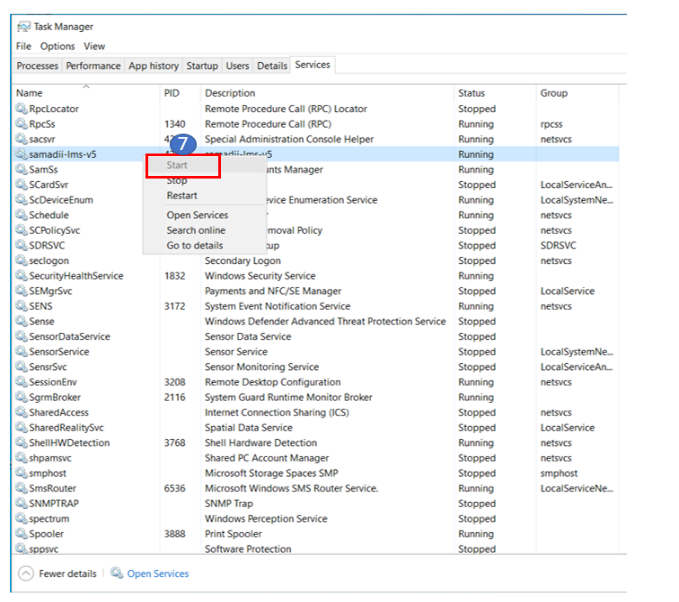
7) Share the log file generated in the previous step to ISV, to generate the licence key file.
8) Copy the issued license file provided by ISV to the folder where the server is installed.
C:\Program Files\Metariver Technology\samadii-lms-v5
4.2 Product Installation procedure
There are few pre-requisites to be followed before installing the Samadii-Dem
1) Once the Client VM is deployed, add inbound and outbound rules for the port no 5501 in the windows firewall settings of the Client VM.
2) Below software’s / hardware’s are needed for Samadii apps to work.
- Microsoft Windows 10(x64) OS
- Nvidia CUDA-enabled GPU(s): Tesla/V100/A100/M60/Quadro/GeForce series
- Microsoft Visual C++ 2010 Redistributable Package SP1 (Service Pack 1)
- Microsoft MS-MPI v7.1
- Microsoft .Net framework 4.5
- samadii™ setup file
4.3 Samadii DEM Installation
Click on the setup file and start the Installation.
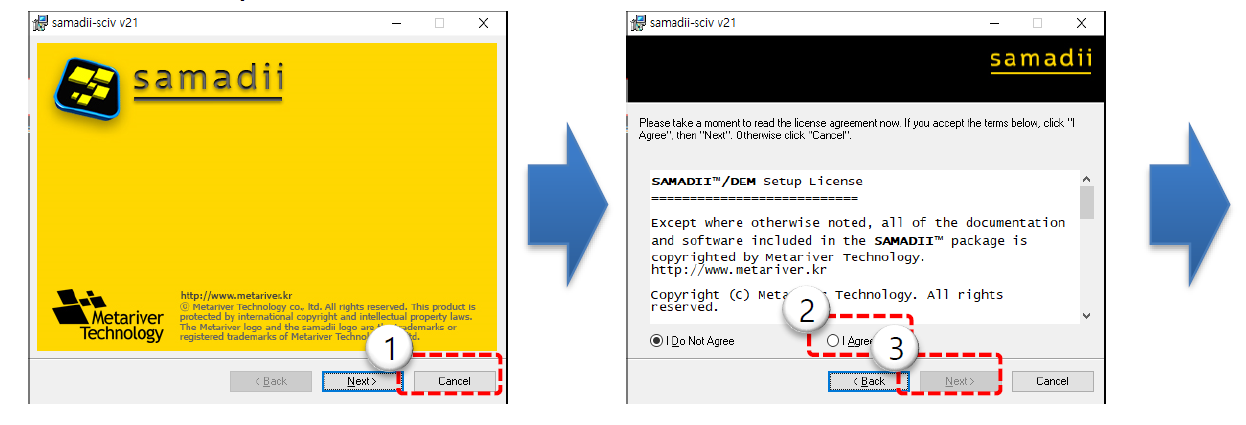
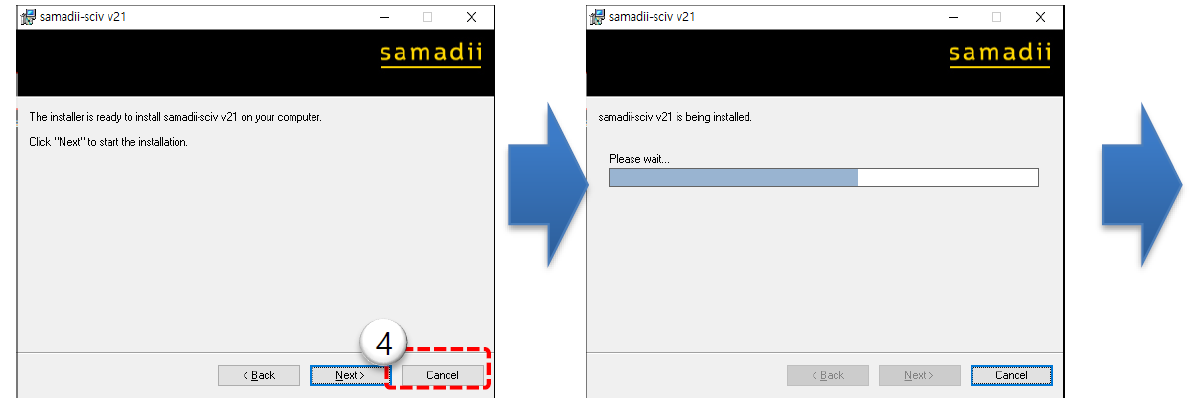
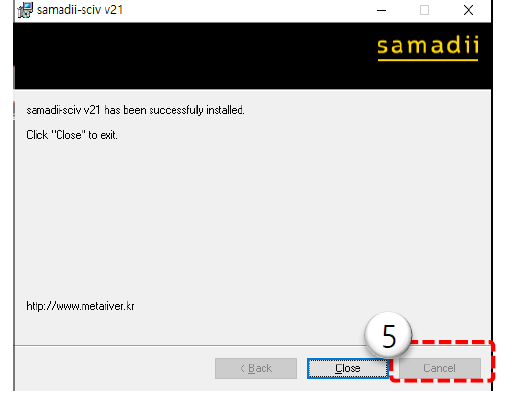
4.4 License server configuration with Samadii-Dem application
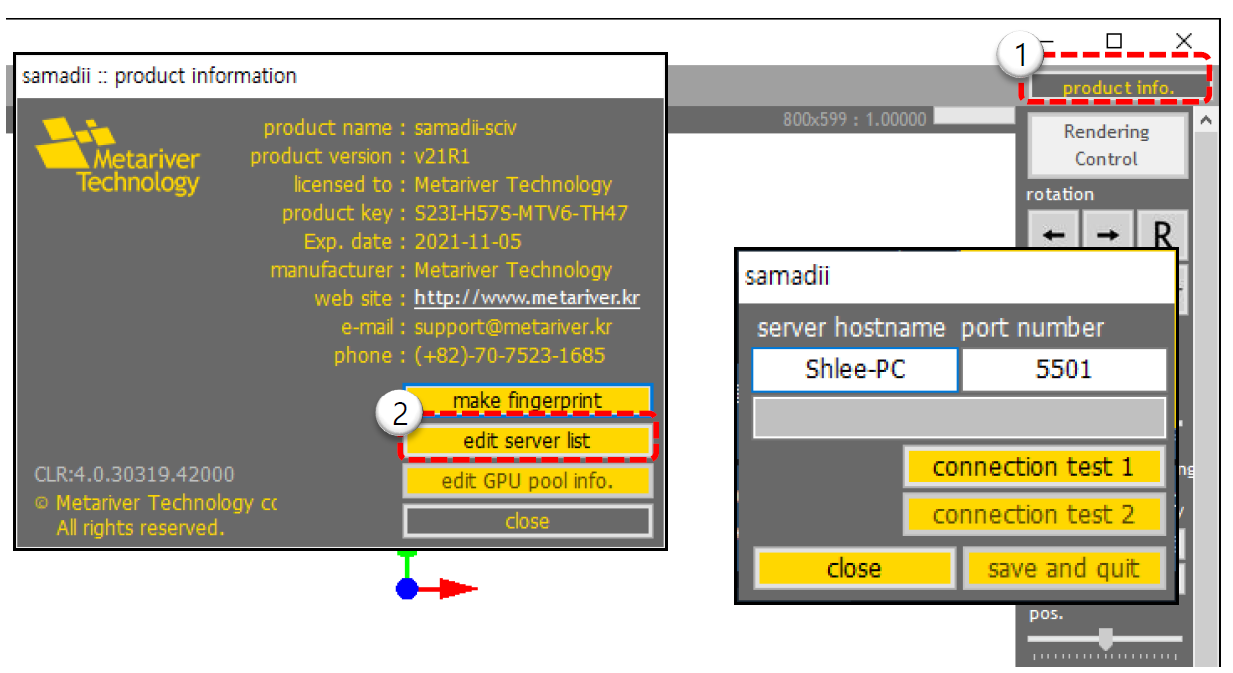 After installing the Dem Application, execute the application and open the “edit server list” window and enter the licence server name / Ip address to make sure the client VM establishes the network connection with the license server.
In “host name” enter the floating server name or IP address and in the “port number” enter the default port number that is 5501.Then check the connection with “Connection test 1” and “Connection test 2” and click on save and quit.
5 Performance results of Samadii-Dem on Azure Virtual Machines
5.1 Samadii-Dem overview:
There exist several types of solid particles in the industrial fields such as: in terms of particle-scale, from Nano-sized particles which cause a defect in the semiconductor process, virus, micron-particles which are used in the printer-toner, chemical by-products, ultra-fine powder in the grinding process, sand, gravel, grains, and mineral ores.
Discrete element method (DEM), also called as distinct element method, is an analytical method which recognizes interactions between several types of solid particles; predicts the motion of enormous number of small particles or efficiency of the combination of more than two types of particles; or pre-measures the external forces on structures applied by particles. In other words, it is a Lagrangian method which decides the movement by using the six degrees of freedom motion equations and considers all forces of individual particles; and it uses to receive the time integration with explicit method.
This method analyses not only the mixing and movement of particles but also the effect and the influence over a toner that is affected by electromagnetic fields inside of a digital printer, also small particles like dust, and dust that moves on the space when there is airflow. Also, it includes particles like aerosol analysis that helps the interpretation of the behaviour in a small particle.
Therefore, DEM requires a lot of memory and computing power for its very small-time step and enormous number of particles to be considered generally. Samadii/dem, which is designed to perform analysis based on the GPU and parallel processing techniques, supplies reliable analysis results by analysing a variety of large-scale grain boundary issues at a high speed. To calculate the movement and force of particles requires much more calculations than we think.
5.2 Samadii-Dem on Azure Platform
To carry out the Samadii-Dem simulations, the right hardware with the latest CPUs and GPUs are needed. Microsoft partnered with Nvidia supplies the required and suitable Infrastructure and hardware on the Azure cloud platform. It provides the latest and fastest computes capabilities for both CPU (Central Processing Unit) and GPU-intensive workloads.
|
Operating system Details |
NDv4 |
NCv3 VM |
NCasT4 |
NVv3 VM |
|
Operating system version |
Windows (Windows 10 Pro-20H2) |
Windows (Windows 10 Pro-20H2) |
Windows (Windows 10 Pro-20H2) |
Windows (Windows 10 Pro-20H2) |
|
OS Architecture |
X86-64 |
X86-64 |
X86-64 |
X86-64 |
|
Processor |
AMD EPYC 7V12 64-Core Processor 2.44 GHz (2 processors) |
Intel(R) Xeon(R) CPU E5-2690 v4 |
AMD EPYC 7V12 64-Core Processor 2.44 GHz |
Intel(R) Xeon(R) CPU E5-2690 v4 |
5.3 Samadii-Dem Performance Results
5.3.1 Model Details
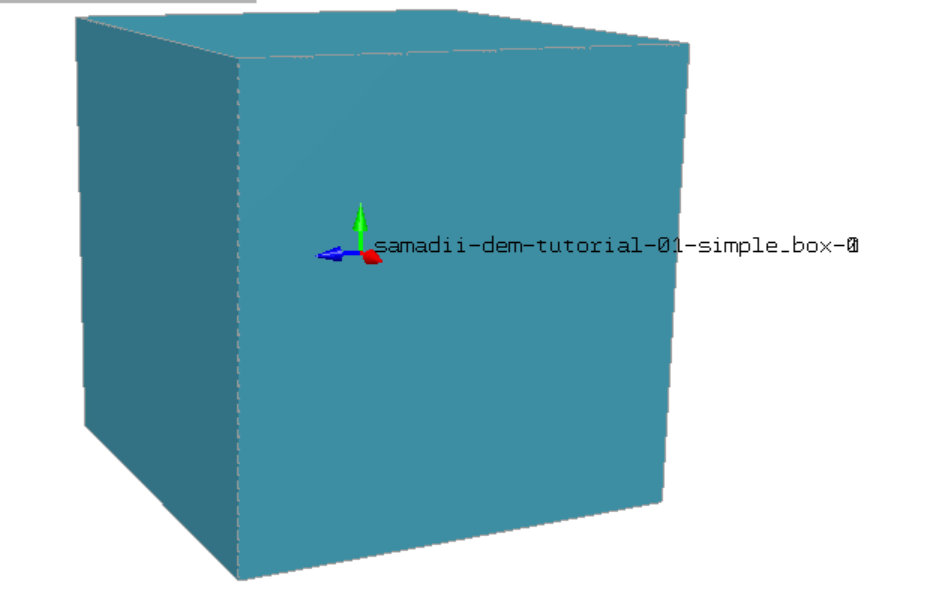
1) Simple-Box

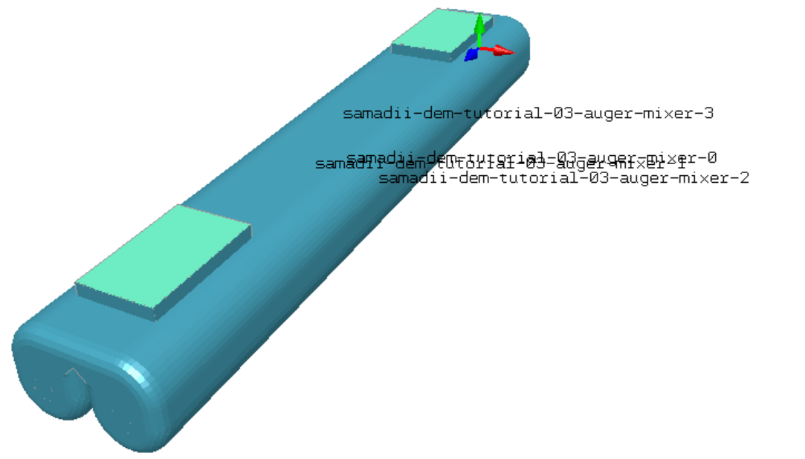
2) Auger-Mixer

5.3.2 Performance Results
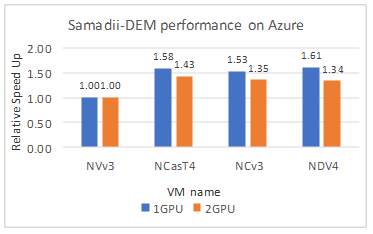
Performance tests have been performed on the provided models, and the elapsed run time and speed up factors have been figured out and presented below.
1) Simple Box
|
VM Name |
GPU Name |
1GPU Run time in sec. |
Relative Speed up |
2GPU Run time in sec. |
Relative Speed up |
|
NDV4 |
A100 |
173 |
1.61 |
252 |
1.34 |
|
NCv3 |
V100 |
182 |
1.53 |
249 |
1.35 |
|
NCasT4 |
Tesla T4 |
176 |
1.58 |
236 |
1.43 |
|
NVv3 |
Tesla M60 |
278 |
1.00 |
337 |
1.00 |
2) Auger-Mixer
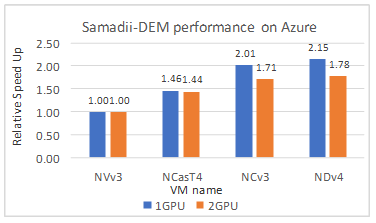
|
VM Name |
GPU Name |
1GPU Run time in sec. |
Relative Speed up |
2GPU Run time in sec. |
Relative Speed up |
|
NDV4 |
A100 |
1766 |
2.15 |
2054 |
1.78 |
|
NCv3 |
V100 |
1885 |
2.01 |
2140 |
1.71 |
|
NCasT4 |
Tesla T4 |
2601 |
1.46 |
2543 |
1.44 |
|
NVv3 |
Tesla M60 |
3794 |
1 |
3659 |
1 |
6 Azure Cost
For the below cost reports, the application installation time is not considered and only the time taken to run all provided models in Samadii-Dem on NDv4, NCv3, NCasT4, NVv3 virtual machines are considered, and license cost is not included.
The Hourly rates reported are subject to change. For the current rate please refer the link. “https://azure.microsoft.com/en-in/pricing/calculator/”
1) Simple Box
|
VM Name |
# GPUs |
# GPUs Utilized |
Azure VM hourly cost ($) |
Wall clock time (Hours) |
Azure consumption |
|
Standard ND96asr v4 |
8 |
1 |
$45.43 |
0.048 |
$2.23 |
|
Standard ND96asr v4 |
8 |
2 |
$45.43 |
0.07 |
$3.23 |
|
Standard_NC6s_v3 |
1 |
1 |
$4.56 |
0.05 |
$0.28 |
|
Standard_NC12s_v3 |
2 |
2 |
$9.07 |
0.07 |
$0.68 |
|
Standard_NC4as_T4_v3 |
1 |
1 |
$0.89 |
0.049 |
$0.09 |
|
Standard_NC64as_T4_v3 |
4 |
2 |
$8.43 |
0.066 |
$0.60 |
|
Standard NV12s v3 |
1 |
1 |
$2.20 |
0.077 |
$0.22 |
|
Standard NV24s v3 |
2 |
2 |
$4.35 |
0.094 |
$0.45 |
2) Auger-Mixer
|
VM Name |
# GPUs |
# GPUs Utilized |
Azure VM hourly cost ($) |
Wall clock time (Hours) |
Azure consumption ($) |
|
Standard ND96asr v4 |
8 |
1 |
$45.43 |
0.49 |
$22.29 |
|
Standard ND96asr v4 |
8 |
2 |
$45.43 |
0.57 |
$25.92 |
|
Standard_NC6s_v3 |
1 |
1 |
$4.56 |
0.524 |
$2.41 |
|
Standard_NC12s_v3 |
2 |
2 |
$9.07 |
0.594 |
$5.41 |
|
Standard_NC4as_T4_v3 |
1 |
1 |
$0.89 |
0.723 |
$0.66 |
|
Standard_NC64as_T4_v3 |
4 |
2 |
$8.43 |
0.706 |
$5.97 |
|
Standard NV12s v3 |
1 |
1 |
$2.20 |
1.05 |
$2.31 |
|
Standard NV24s v3 |
2 |
2 |
$4.35 |
1.02 |
$4.43 |
7 Summary
- Samadii-Dem Application is successfully deployed and tested on NDv4, NCv3, NCasT4 & NVv3 series Azure Virtual Machines.
- From the Performance Benchmarking results, we can observe that NCasT4 VM and NCv3 VMs are giving good performance for Samadii-DEM application.
- NCasT4 Virtual Machines with 1 GPU configuration are recommended here since these VMs are giving good scale-up and are also very cost efficient
8 Running Samadii Dem v21R2 on Azure Virtual Machines:
Users can reach out to any of the following contacts for further support.
- Contact through Metariver: support@metariver.kr
- Contact through Microsoft: Microsoft global black belt team
- Contact through Capgemini: AzureHPC-Certification@capgemini.com
2 Deploy Virtual Machine on Azure Cloud Platform
2.1 Azure Cloud Architecture for Application
2.2 Azure Virtual Machine (VM)
3 Create a Virtual Machine on Azure Platform
3.1 Connect to virtual machine
4 Install Samadii-Dem Application on Virtual Machine:
4.1 License Manager Installation
4.2 Product Installation procedure
4.4 License server configuration with Samadii-Dem application
5 Performance results of Samadii-Dem on Azure Virtual Machines
5.2 Samadii-Dem on Azure Platform